This is only a guide for commissioning Discover AES 210HV battery with Solis 60K HV Hybrid. For more detailed instructions please see the Installation & Local Commissioning Guide
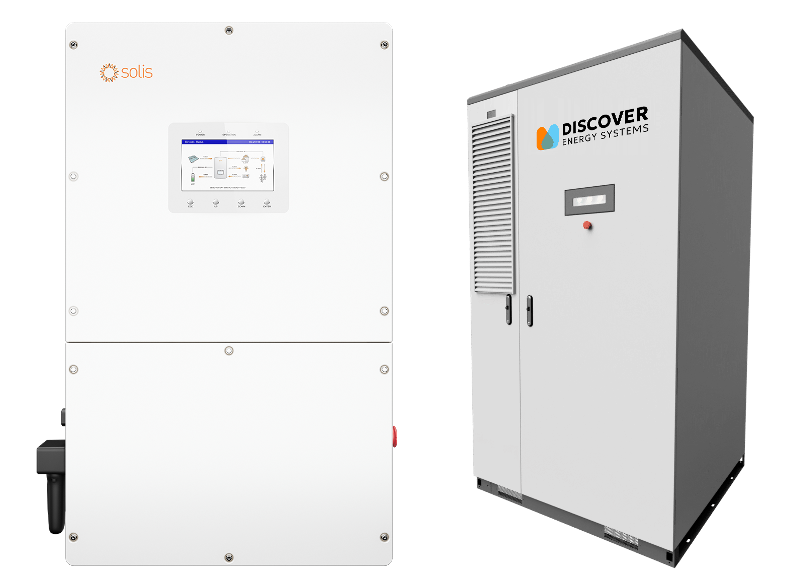
The full Discover AES 210HV + Solis 60K Commercial Hybrid System Integration Guide can be downloaded here: https://info.discoverlithium.com/hubfs/documents/885-0097-aes-210hv-solis-integration-guide.pdf
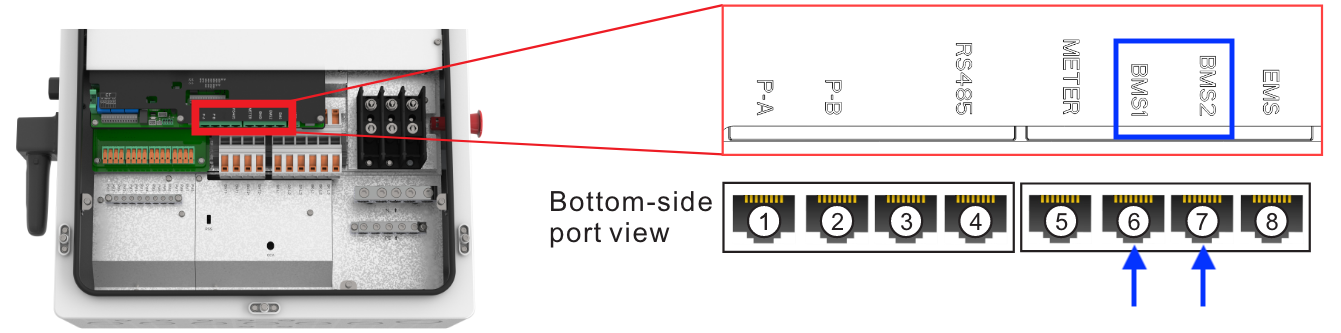
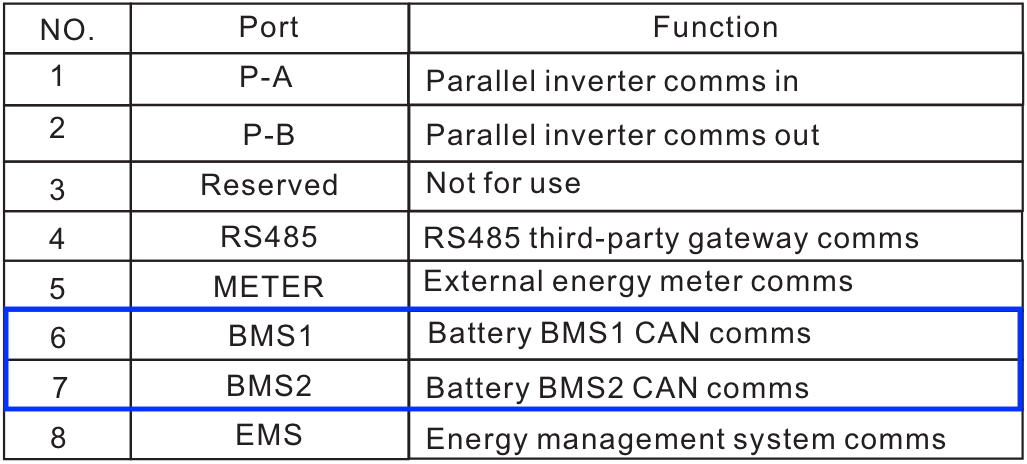
Inverter-Side CAN Cable Connection and Pinout
The pinouts match on both battery and inverter ends. Connect one end of the cable to the “BMS1” or “BMS2” RJ45 port of the inverter as shown below. You can use a CAT6 shielded cable to connect the two ports together. Be sure to use an ethernet cable tester to ensure both connectors were made correctly and the cable works.

LYNK II CAN Cable Connection
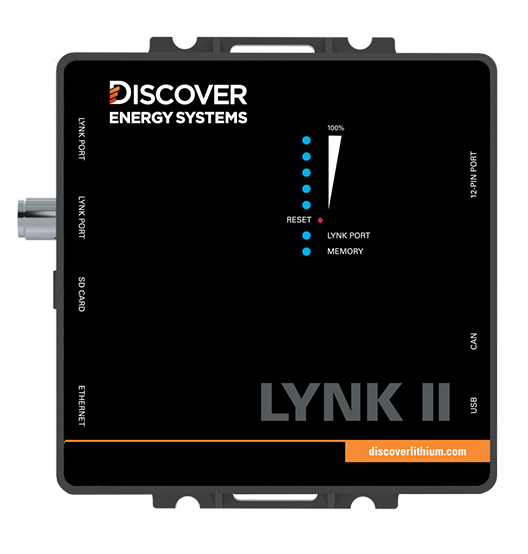
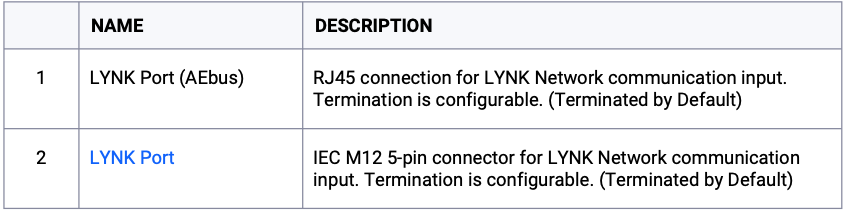
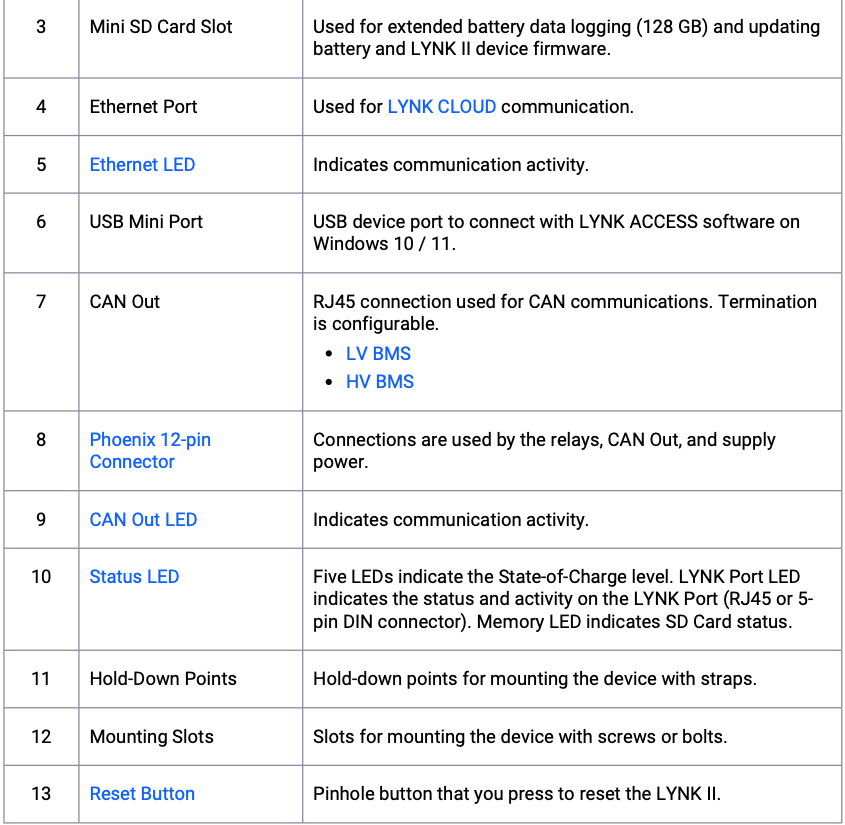
- To the Inverter: Plug the other end of the CAN communication cable from the inverter into the CAN Out (RJ45) port on the LYNK II Gateway.
To the Battery: Connect a separate Ethernet cable from the LYNK Port on the LYNK II Gateway to the J3 or J4 port on the AES 210HV High Voltage Box.
Ensure that the communication network is properly terminated. Depending on the specific Discover battery model, this may require plugging a termination resistor plug into the last open communication port in your battery daisy chain.

LYNK II Configuration
Before the Solis inverter can understand the LYNK II, you must configure the gateway to broadcast the correct manufacturer protocol.
- Connect to PC: Use a Type-B Mini USB cable to connect the LYNK II to a Windows computer.
- Launch Software: Open the LYNK ACCESS software (available for 64-bit Windows).
- Select Protocol: Within the LYNK ACCESS interface, navigate to the CAN configuration settings and select the Solis communication protocol. This translates the battery's internal telemetry into the exact CANbus language the Solis inverter requires.
- Full manual for LYNK II Gateway: https://info.discoverlithium.com/hubfs/documents/des-lynk-2-operating-manual.pdf
Turning the System On
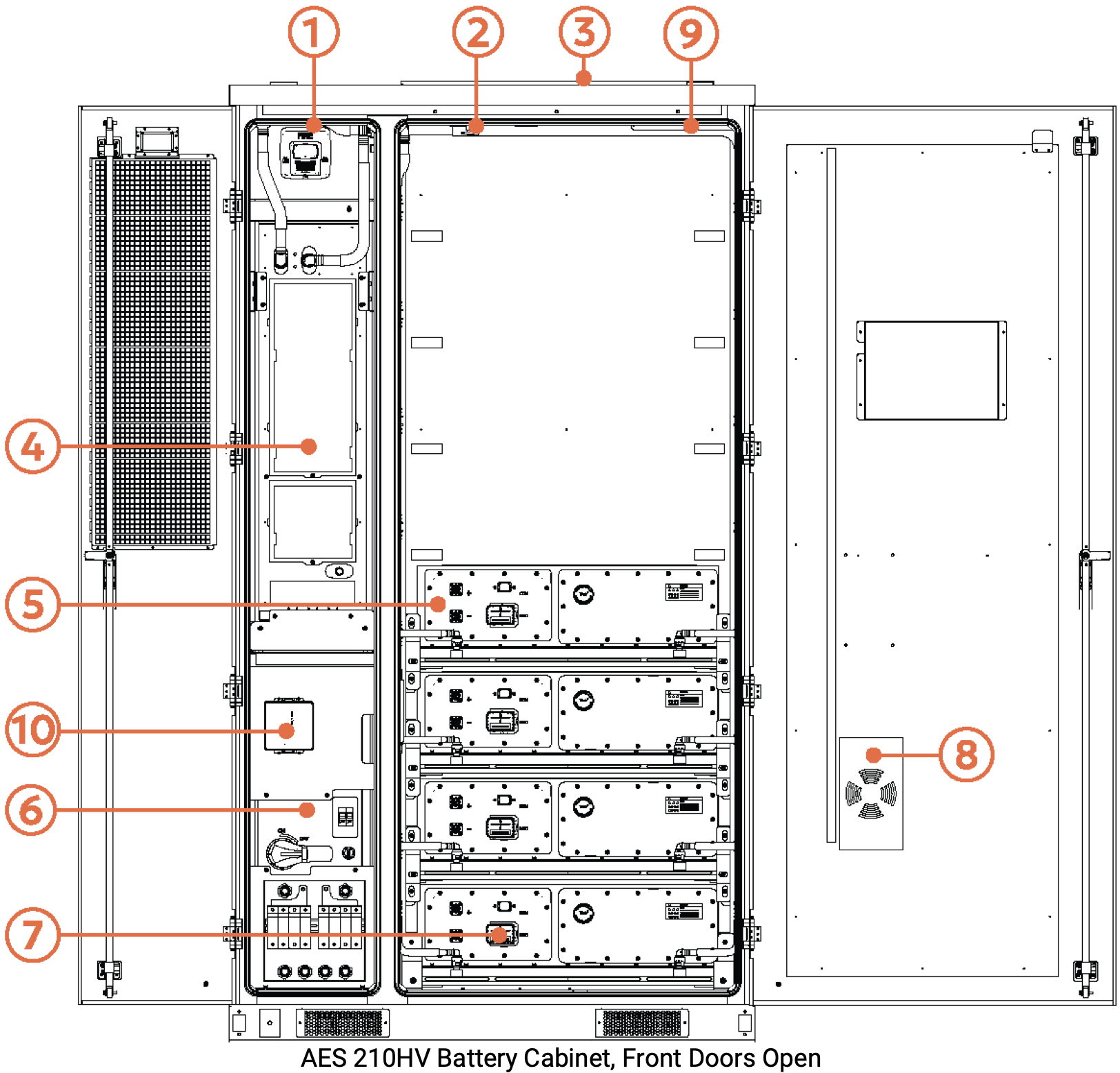
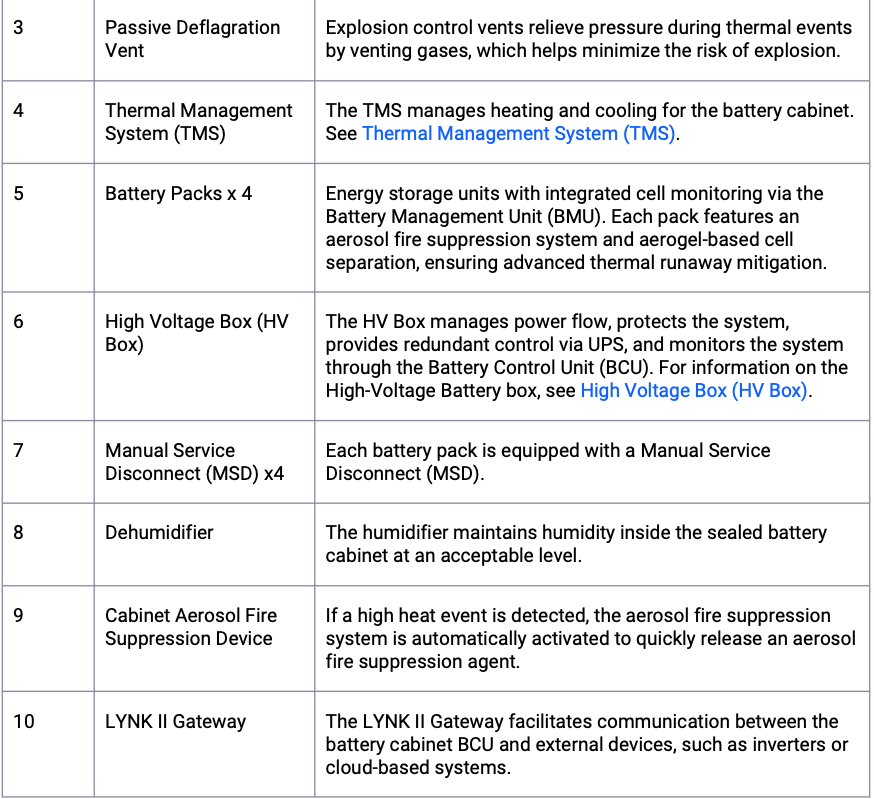
- Install Manual Service Disconnects (MSDs): Before initiating any power, ensure that the Manual Service Disconnects (MSDs) are fully and securely installed into the designated receptacles on each individual battery pack within the cabinet.
- Close the DC Disconnect: Locate the main DC disconnect switch on the AES 210HV High Voltage Box. Turn the switch to the ON (closed) position.
- Provide Auxiliary AC Power: The AES 210HV requires external power to boot its internal Battery Management System (BMS). Close the dedicated AC breaker to supply 200-275 VAC single-phase power to the Auxiliary AC input on the High Voltage Box.
- Wait for Initialization: Once AC power is applied, the system will begin its boot sequence. Allow up to 60 seconds for the battery cabinet to fully initialize.
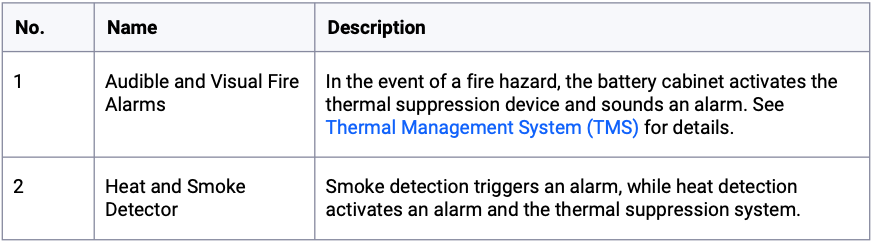
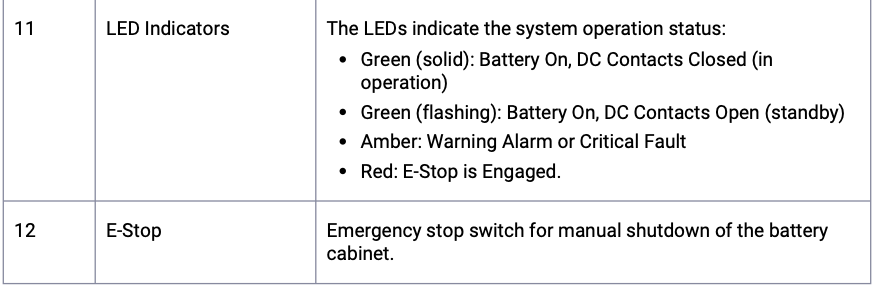
- Verify Status LED: Check the LED indicator located on the outside of the cabinet door. The startup is successful when the LED illuminates solid green. (Note: For safety and proper operation, the cabinet door must remain closed during this process and standard operation).
- Energize the Inverter: Only after the battery cabinet is fully initialized and showing a solid green LED should you proceed to turn on AC power to the inverter and also the Solis inverter's DC switch. Be sure to give the red E-Stop RSD button a clockwise turn to ensure it is open and not closed (pushed in).
Link for the full Discover AES 210HV Manual: https://info.discoverlithium.com/hubfs/documents/805-0092-aes210hv-manual.pdf
Download the SolisCloud App & Register an Account
- In the App Store/Play Store search “SolisCloud” and then download the app that has the same icon as this one:

- Register a new Organization account if you are installer and have not yet set up an account yet.
- Log in to SolisCloud
SolisCloud App: Settings configuration
- Tap Service > Local Debugging > Connect with Bluetooth.
- Create a new password for logging in to the inverter
- Configure the Quick Settings. For the battery, select “PYLON_LV"
- Once you reach the main overview screen tap “Settings” in the bottom right corner
- Scroll to the bottom and then tap “Device Upgrade”
- Upgrade the firmware on all paralleled Solis inverter-chargers.
- In the bottom menu bar, select Setting > Device Upgrade.
- Upgrade the HMI and DSP.
Note 1: Upgrading inverter firmware is mandatory.
Note 2: All Solis inverters must be use the same firmware version to operate normally. If you are connecting multiple inverters in parallel be sure they are on the same version.
For a guide on how to upgrade inverter firmware please see this article:
Upgrading Hybrid Inverter Firmware Locally
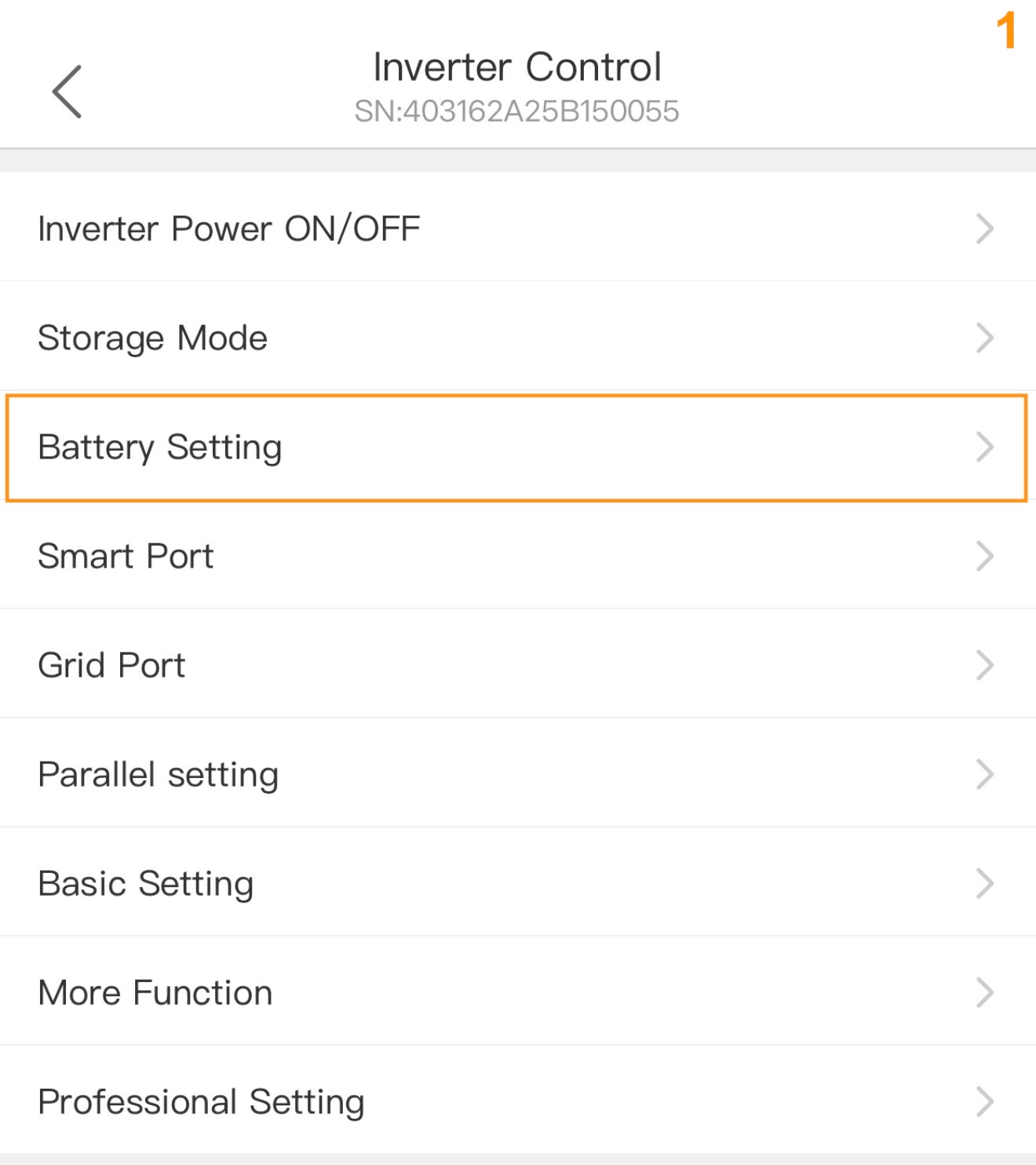
- After upgrading the firmware, in the phone app tap Battery Setting
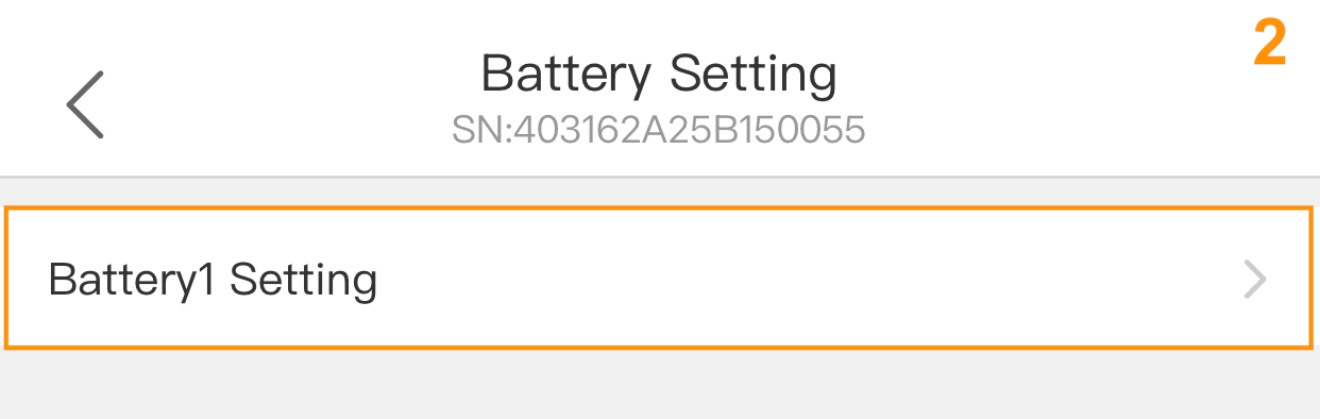
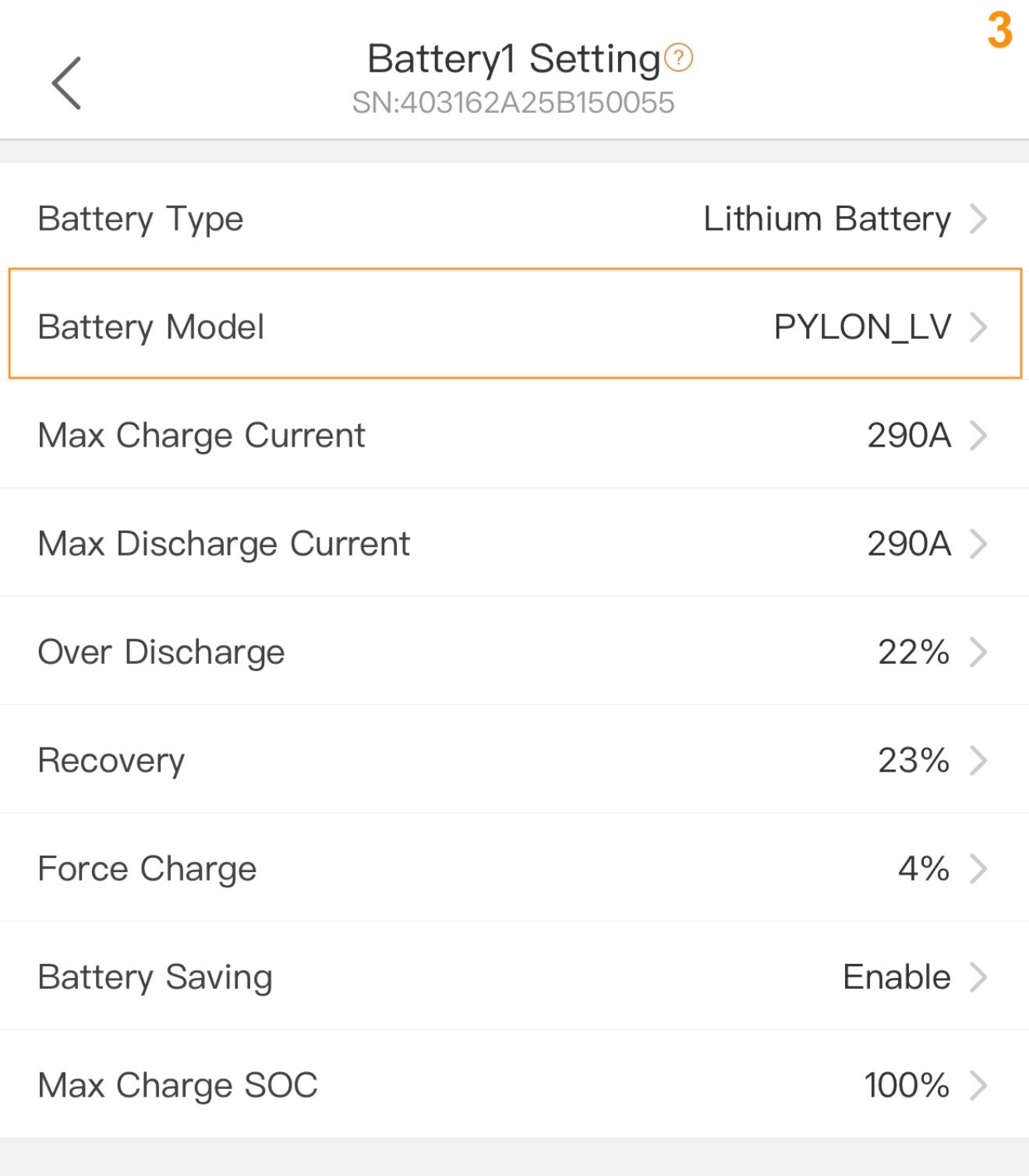
- In the Battery Setting page, tap "Battery1Setting"
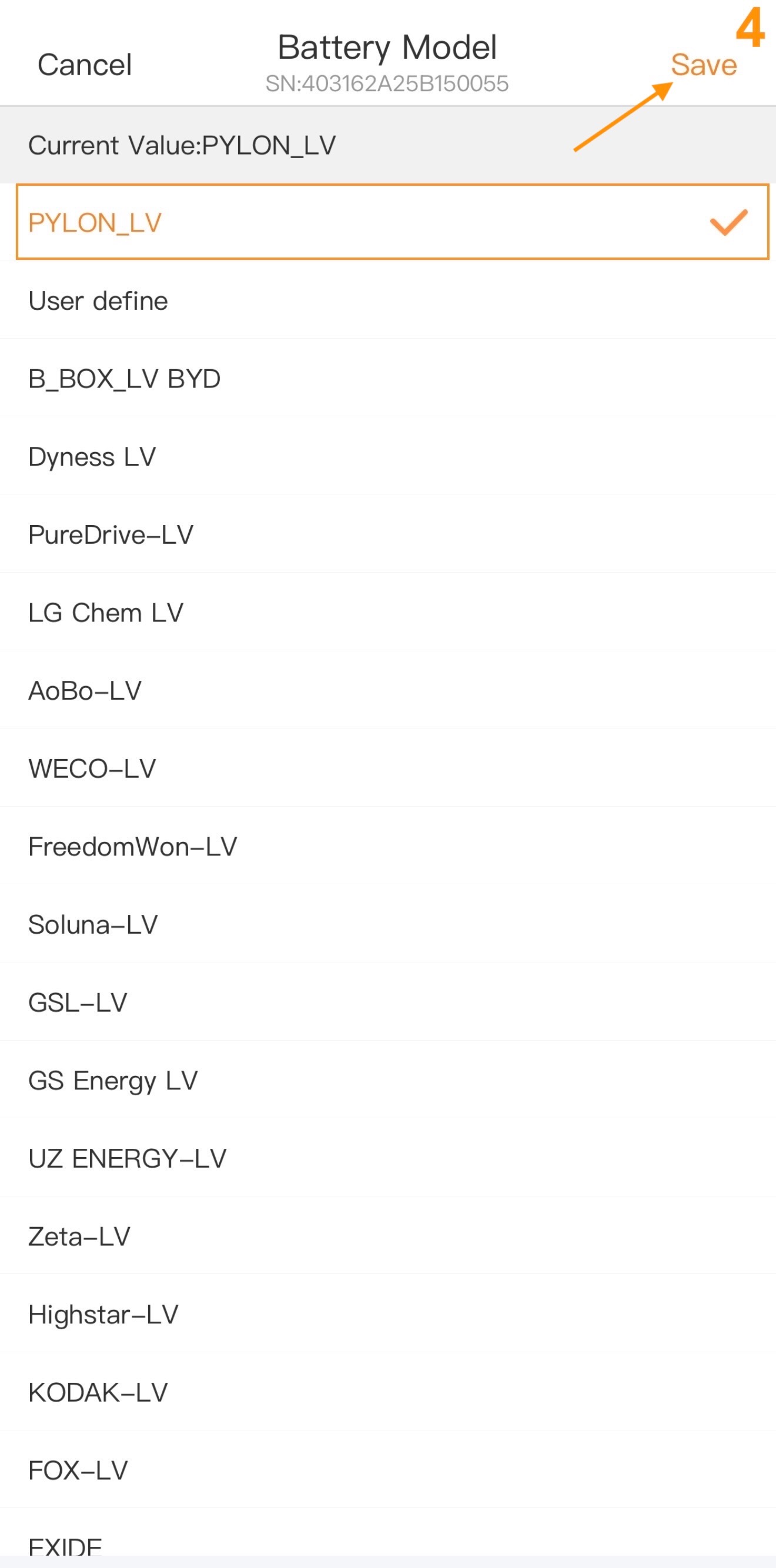
- Make sure the Battery Model is set to “PYLON_LV” if it is not then you will need to first tap "Battery Model”, then tap “PYLON_LV”, and then tap “Save” in the top right corner of the screen.
Battery Settings and Energy Storage Mode Settings
Please see this guide for detailed explanations of each and every battery-related setting as well as energy storage and export power settings: Battery, Energy Storage, & Export Power Settings Explained
- Set other inverter battery-related settings as required.For instructions on configuring inverter settings, refer to the full Solis manual or the article linked above.
- After all the settings have been configured, check the overview page of the system.
- Follow all manufacturer instructions to power up the inverter DC switch, and turn ON the batteries and other peripheral equipment.
- Use the overview to confirm the battery SOC, battery communications, grid, and load.
- Review and resolve any generated alarms.
- At this point, if the system is grid-connected, AC grid power is turned on.
- Exit the app once the system is running and all checks are complete.
Depending on your system and particular use case, there may be other settings that require configuration. Refer to the inverter manual for information on these settings.
Connecting Two Inverters to a Single AES 210HV Battery Cabinet
Do not connect multiple Solis hybrid inverters to a single, shared battery bank. The battery DC-DC converters within the inverters are non-isolated. Tying multiple inverters to the same DC bus will create circulating currents between the units, leading to severe overcurrent damage over time. Each inverter must be connected to its own dedicated, independent battery system. Damages resulting from shared-battery wiring configurations will strictly void the equipment warranty.
Was this article helpful?
That’s Great!
Thank you for your feedback
Sorry! We couldn't be helpful
Thank you for your feedback
Feedback sent
We appreciate your effort and will try to fix the article