This is only a guide for commissioning Discover HELIOS battery with Solis 16K LV Hybrid.
For more detailed instructions please see the Installation & Local Commissioning Guide
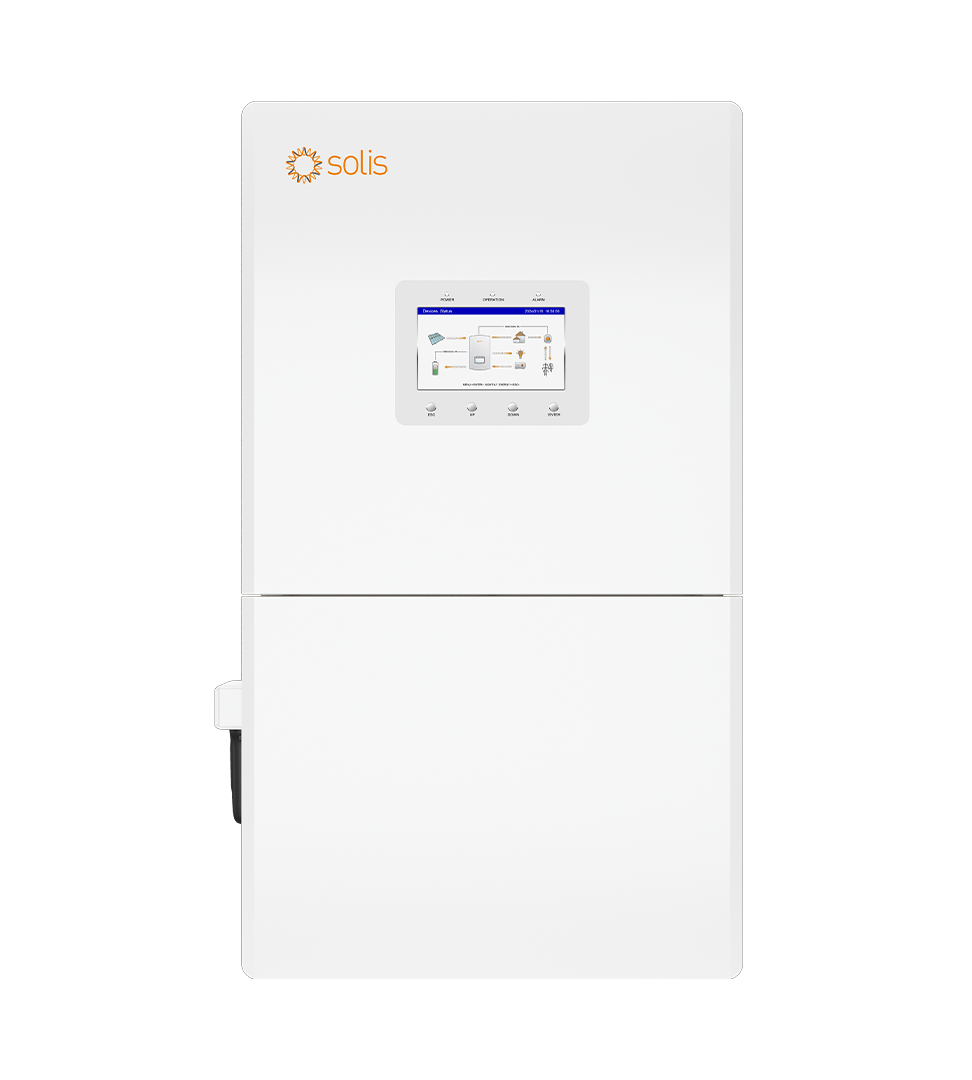
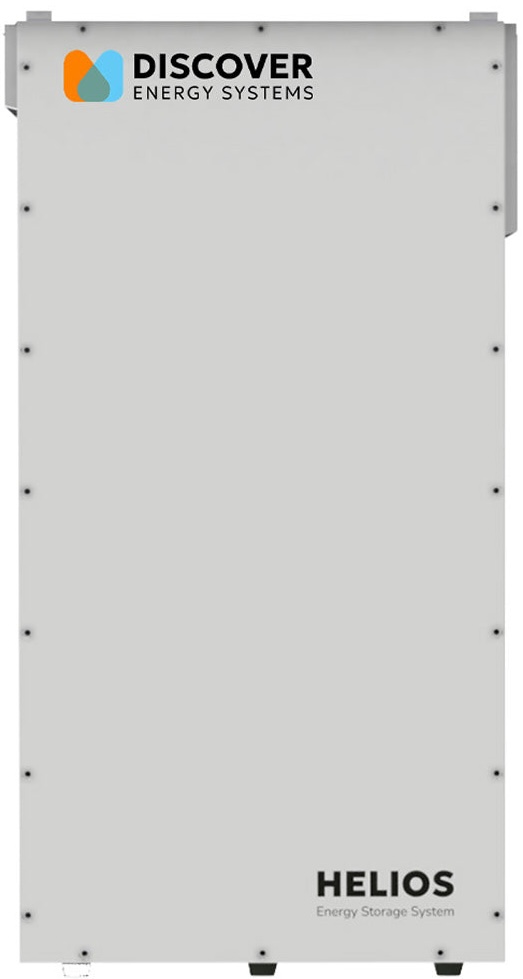
Inverter-Side CAN Cable Connection
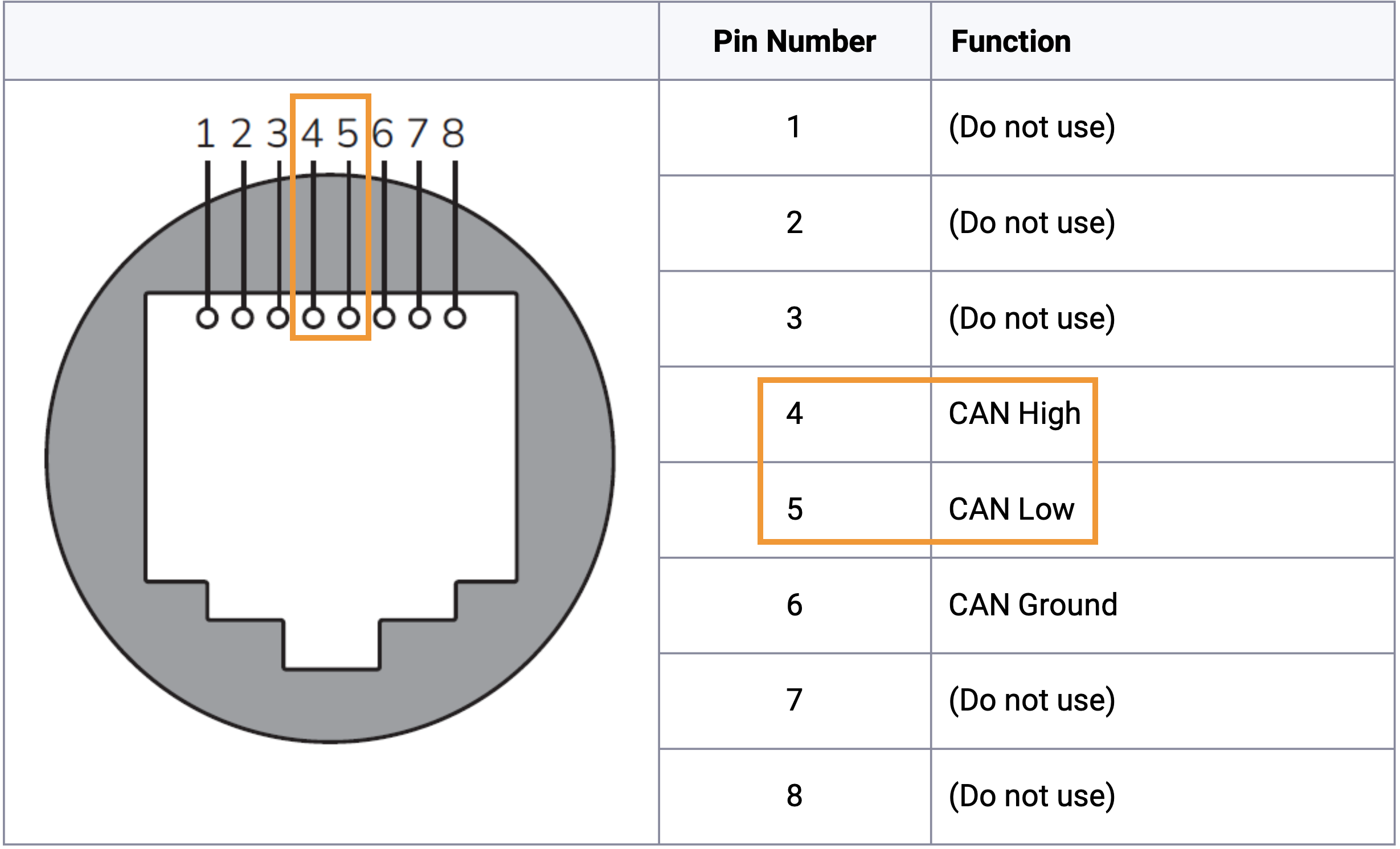
The pinouts match on both battery and inverter ends. Connect one end of the cable to the “BMS” RJ45 port of the inverter as shown below. You can use a CAT6 shielded cable to connect the two ports together. Be sure to use an ethernet cable tester to ensure both connectors were made correctly and the cable works.
Pin 4 (blue) is CAN-H (CAN High)
Pin 5 (blue-white) is CAN-L (CAN Low)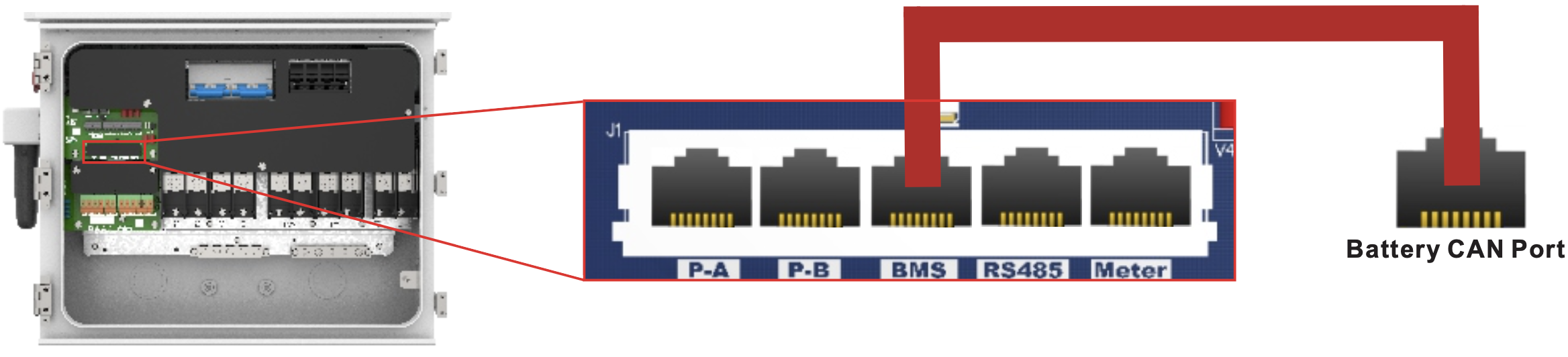

Battery-Side CAN Cable Connection
Connect the other end of the CAN cable to the “COM-2” RJ45 port on the battery. This will be the upper-right port. 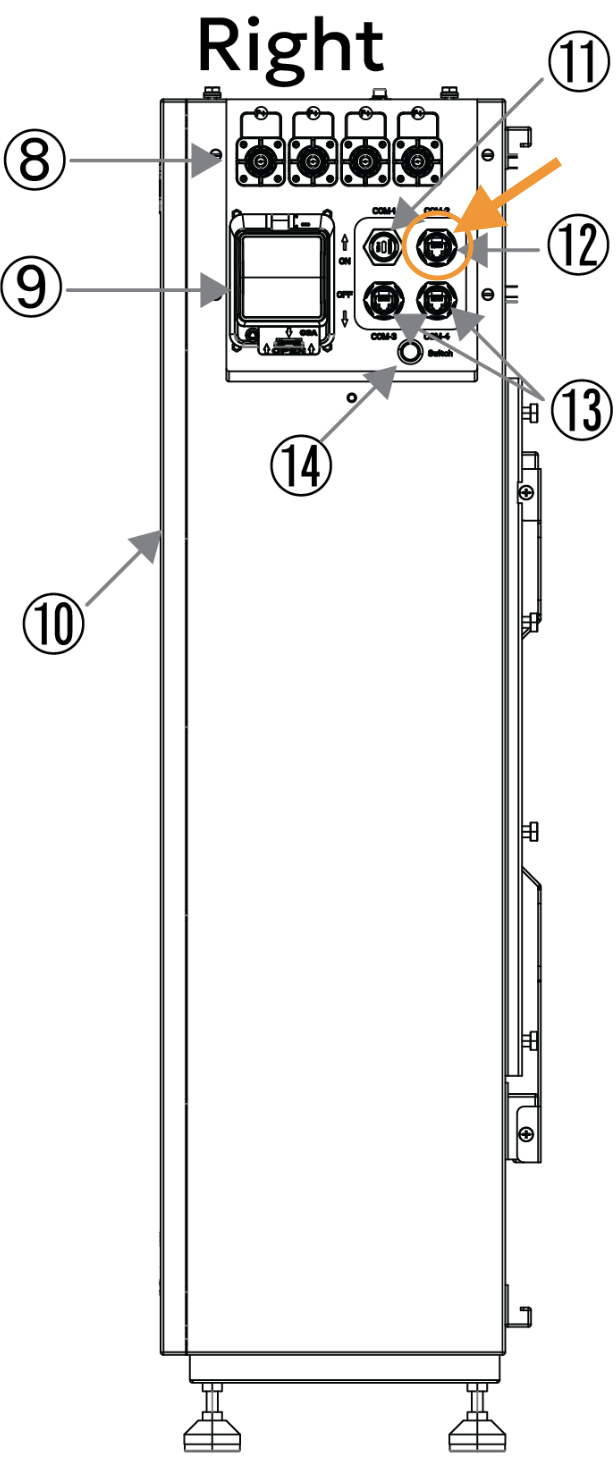
Using Open Loop (No Communication)
The Solis LV Hybrid supports closed-loop communication with the Discover HELIOS ESS. If necessary, first configure the Solis inverter to operate in parallel by establishing the inverter-charger master/slave relationships and phase assignments before setting the battery operation parameters. Confirm each inverter operates normally, one by one, before initiating full system operation.
When the Solis inverter is configured in a closed loop with Discover Lithium batteries and the communication breaks between the batteries and inverter, after 5 minutes, the inverter safely stops operation and displays an alarm. If communication is re-established, the Solis inverter resumes closed-loop operation within a few seconds.
If communication cannot be reestablished and you need to resume operation, you may have to manually convert the Solis inverter to an open-loop configuration.
⚠️ CAUTION: Open-Loop Operation is a Temporary Measure Open-loop operation should only be used as a temporary measure for troubleshooting and commissioning purposes. Normal operation should always be conducted in closed-loop mode. Operating without active communication between the battery and inverter significantly increases system risk. Closed-loop communication allows the battery to continuously communicate vital charge limits, discharge limits, voltage limits, temperature conditions, and fault states to the inverter.
Integration between the HELIOS platform and the Solis inverter is intentionally straightforward. If communication is lost, installers must focus on diagnosing and resolving the root cause (e.g., verifying the standard straight-through RJ45 cable and protocol settings) rather than transitioning the system into long-term open-loop operation.
Note: Depending on your system and particular use case, there may be other settings that require configuration. Refer to the inverter manual for information on these settings.
Open Loop Setup Procedure
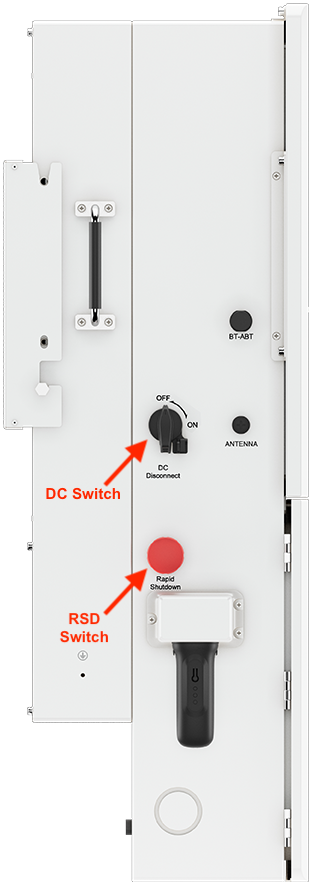
- Set the Discover Lithium batteries to ON and set the inverter to ON by turning on the DC switch on the side of the inverter. If the system is grid-tied then also make sure to turn on AC power to the inverter from the grid.
From the Solis Cloud app, navigate to Setting > Battery, and configure the parameters listed below.
The Solis inverter will operate in an open-loop configuration when selecting a Battery Type without communication (“Without COMM”).
Solis Open-Loop Configuration Settings
Setting | Description |
|---|---|
Battery Type | 51.2V Lithium Battery (Without COMM) |
Max Charge Current | Number of batteries x 200 A NOTE: Each HELIOS ESS battery is rated at a 200 A discharge rate, but when connected in parallel, the maximum current is limited by internal busbars. For the recommended maximum current for paralleled HELIOS ESS, refer to the table in the Minimum Specifications for Battery Systems topic. |
Max Discharge Current | |
Over discharge (1) | 47.0 V |
Recovery (1) | 49.0 V |
Force Charge (1) | 45.0 V |
Battery Saving (1) | Disable |
Batt Capacity | Number of batteries x 314 Ah |
Equalizing Charge Voltage | 55.2 V |
* Current Limit Note for HELIOS ESS: Each HELIOS ESS battery is rated at a 200 A discharge rate. However, when connected in parallel, the maximum current is limited by internal busbars. For the recommended maximum current for paralleled HELIOS ESS, refer to the table in the Minimum Specifications for Battery Systems topic.
¹ Parameter Adjustment: Adjust the battery’s Over Discharge, Recovery, Force Charge, and Battery Saving parameters as required by your specific use case.
Getting Started: Turning the system on and SolisCloud
- Set the Discover Lithium batteries to ON and set the inverter to ON by turning on AC power to the inverter and turning on the DC switch. Be sure to also check the RSD switch by giving it a clockwise turn to ensure it is open. If there is no grid just PV and battery or only battery then you only need to turn on the DC switch on the left side of the inverter while facing it.
Download the SolisCloud App & Register an Account
- In the App Store/Play Store search “SolisCloud” and then download the app that has the same icon as this one:

- Register a new Organization account if you are installer and have not yet set up an account yet.
- Log in to SolisCloud
SolisCloud App: Settings configuration
- Tap Service > Local Debugging > Connect with Bluetooth.
- Create a new password for logging in to the inverter
- Configure the Quick Settings. For the battery, select “PYLON_LV"
- Once you reach the main overview screen tap “Settings” in the bottom right corner
- Scroll to the bottom and then tap “Device Upgrade”
- Upgrade the firmware on all paralleled Solis inverter-chargers.
- In the bottom menu bar, select Setting > Device Upgrade.
- Upgrade the HMI and DSP.
Note 1: Upgrading inverter firmware is mandatory.
Note 2: All Solis inverters must be use the same firmware version to operate normally. If you are connecting multiple inverters in parallel be sure they are on the same version.
For a guide on how to upgrade inverter firmware please see this article:
Upgrading Hybrid Inverter Firmware Locally
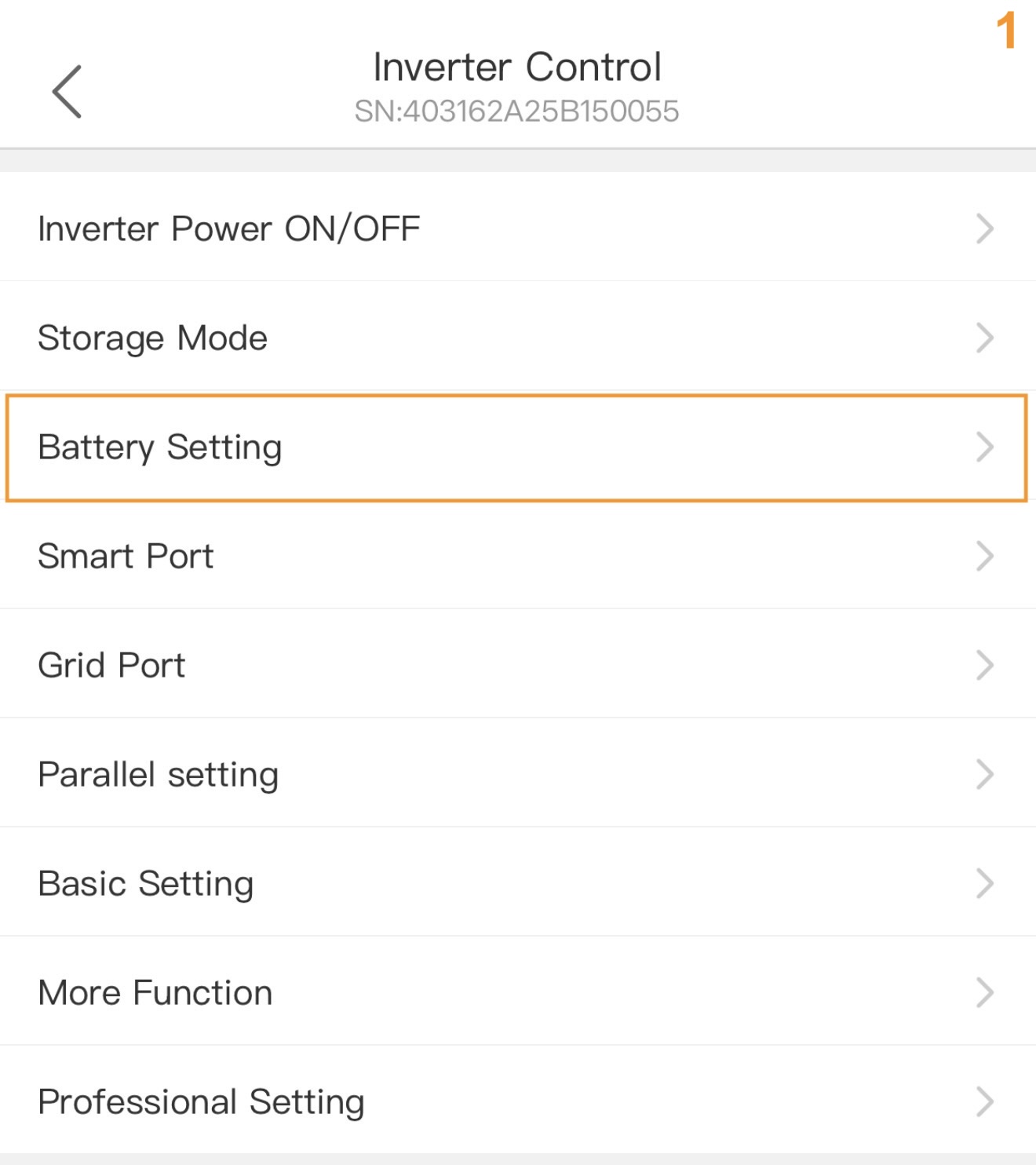
- After upgrading the firmware, in the phone app tap Battery Setting
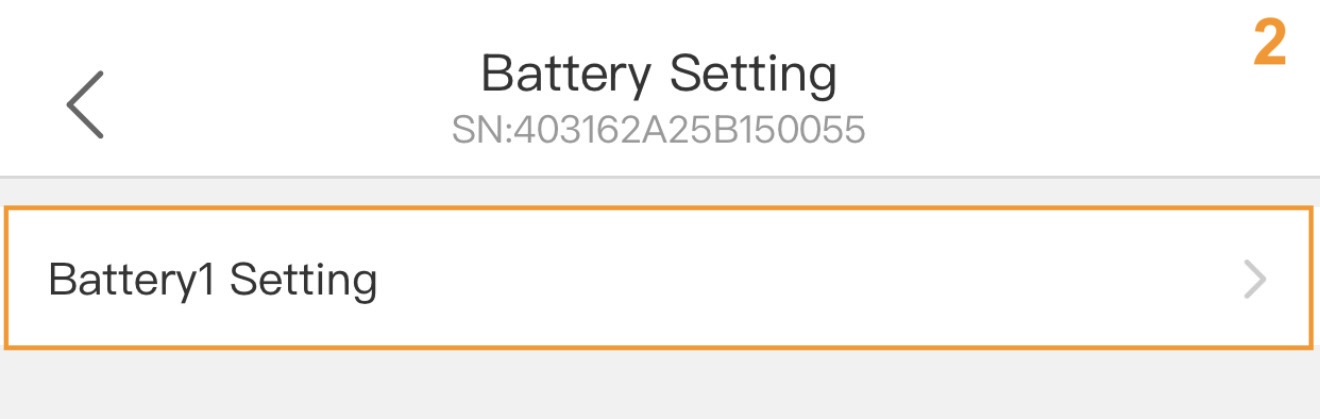
- In the Battery Setting page, tap "Battery1Setting"
- Make sure the Battery Model is set to “PYLON_LV” if it is not then you will need to first tap "Battery Model”, then tap “PYLON_LV”, and then tap “Save” in the top right corner of the screen.
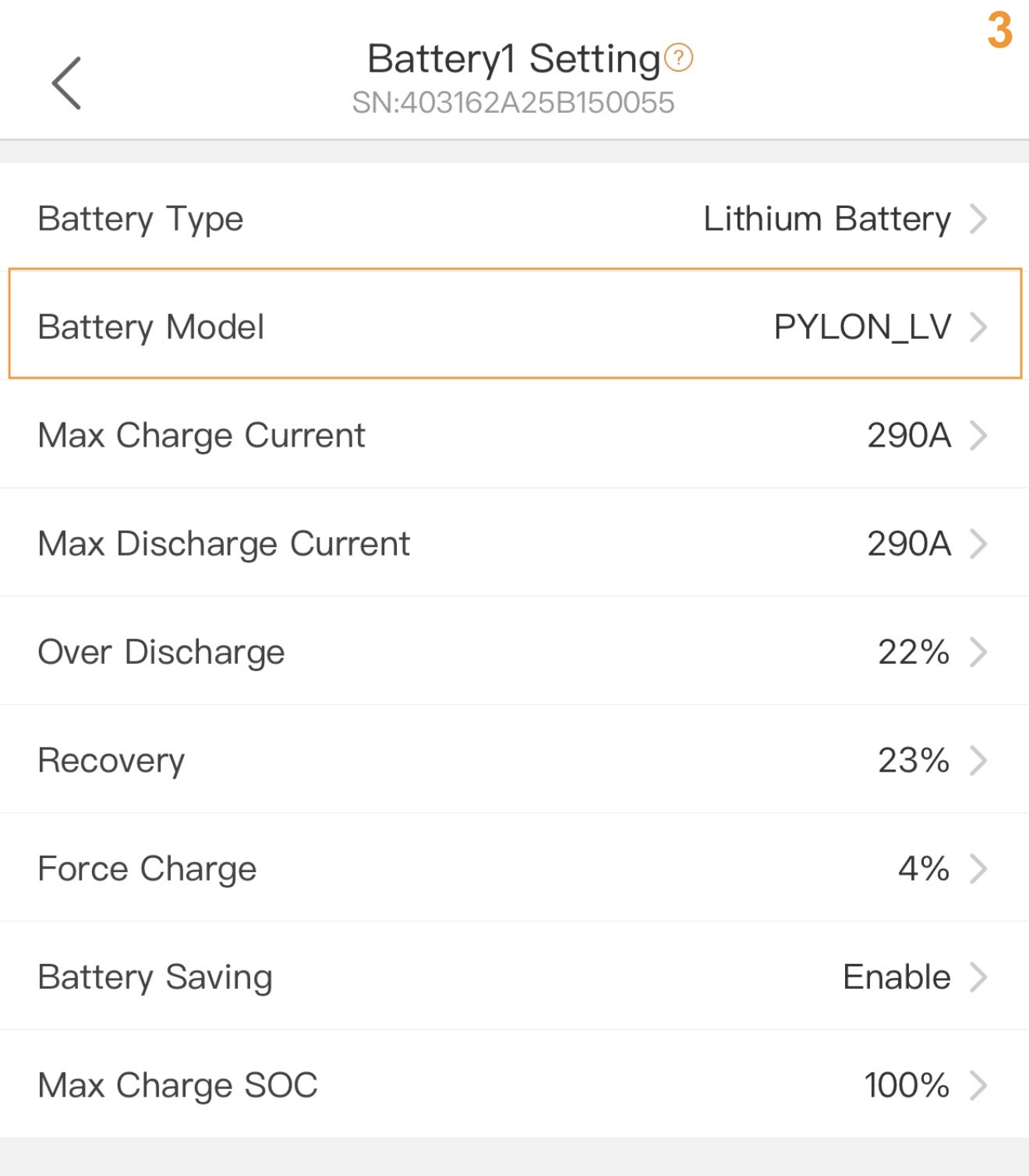
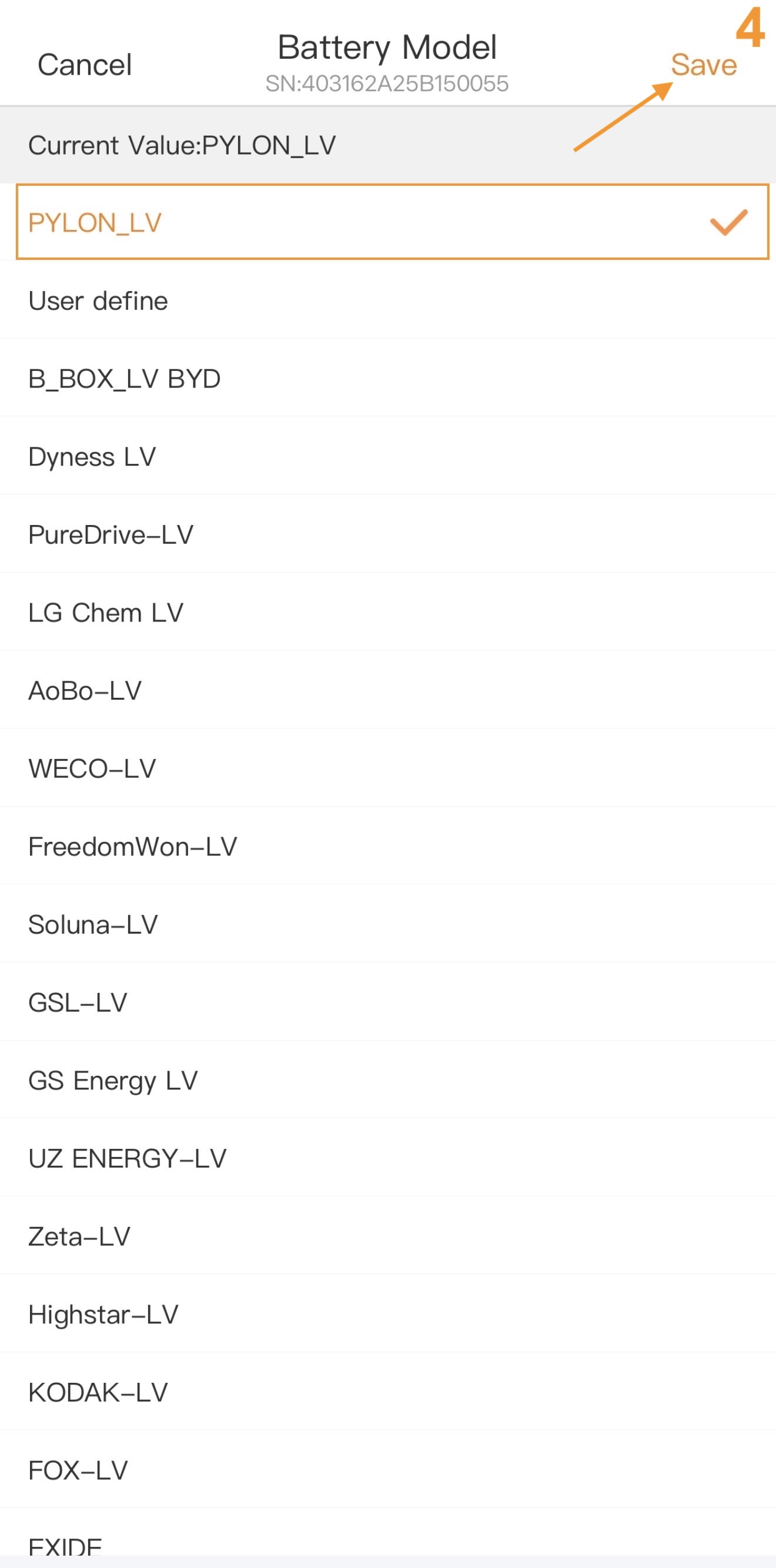
Battery Settings and Energy Storage Mode Settings
Please see this guide for detailed explanations of each and every battery-related setting as well as energy storage and export power settings: Battery, Energy Storage, & Export Power Settings Explained
- Set other inverter battery-related settings as required.For instructions on configuring inverter settings, refer to the full Solis manual or the article linked above.
- After all the settings have been configured, check the overview page of the system.
- Follow all manufacturer instructions to power up the inverter DC switch, and turn ON the batteries and other peripheral equipment.
- Use the overview to confirm the battery SOC, battery communications, grid, and load.
- Review and resolve any generated alarms.
- At this point, if the system is grid-connected, AC grid power is turned on.
- Exit the app once the system is running and all checks are complete.
Depending on your system and particular use case, there may be other settings that require configuration. Refer to the inverter manual for information on these settings.
Was this article helpful?
That’s Great!
Thank you for your feedback
Sorry! We couldn't be helpful
Thank you for your feedback
Feedback sent
We appreciate your effort and will try to fix the article