 Please download and use the attached guide which is better formatted than this article is. Please download and use the attached guide which is better formatted than this article is.
Solis S2-WL-ST Modbus TCP Communication Guide
Ginlong Technologies Co., Ltd. All Rights Reserved Revision History Version 1.0 (December 26, 2023): Initial release. Version 1.1 (May 29, 2024): Updated the login password instructions for the built-in web page.
1. Applicable ScenariosModbus TCP is a protocol based on TCP/IP that typically uses Ethernet as its physical transmission medium. This manual explains how to use the Solis S2-WL-ST data logger to read inverter data on-site via the Modbus TCP protocol.
1.1 Required Materials1.2 Debugging ToolsDownload and install the Modbus Poll debugging tool using the link below, or use your preferred alternative Modbus TCP communication software.
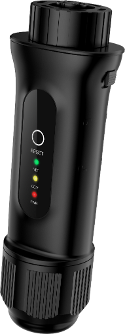
1.3 Hardware InstallationFollowing the S2-WL-ST manual, plug the data logger into the inverter's COM port. Connect one end of the Ethernet cable into the rear network port of the data logger, and plug the other end into your router, switch, or directly into your computer.
Note: Specific connection methods may vary based on your device model and network topology. Consult the device manual or an IT professional if you require network-specific assistance.
2. Confirming the S2-WL-ST IP Address
2.1 Using the Default IP AddressThe default IP address for the S2-WL-ST logger is 10.10.100.254. Connect an Ethernet cable directly from the logger’s port to your computer. In your computer's network settings, ensure the Internet Protocol Version 4 (TCP/IPv4) properties are set to obtain an IP address automatically.
Using this direct cable method, you can use the default IP address to test the TCP connection regardless of whether the logger has been configured for a wireless network.
2.2 Setting a Static IP AddressBy default, the logger uses a dynamic (DHCP) IP address when connected to a local area network (LAN). When connected to the LAN, you can view this IP address on the logger details page within the SolisCloud platform, allowing you to test the TCP connection wirelessly (without a direct Ethernet cable) as long as your PC is on the same network.
If you prefer to assign a static IP address, follow these steps via the SolisCloud app:
1. Open SolisCloud, log in, and tap Service in the bottom right corner. 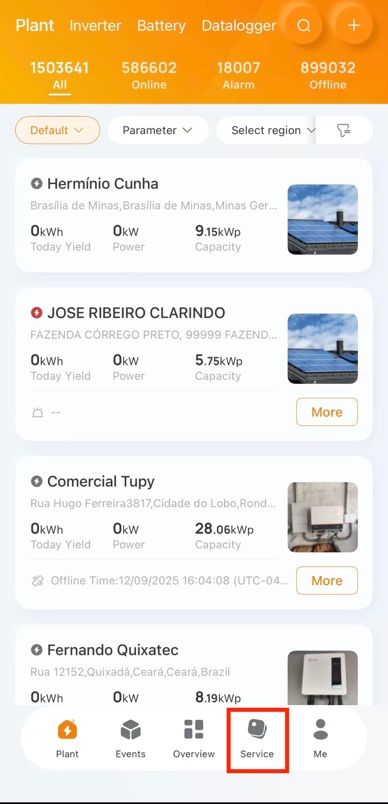
2. Tap Local Debugging. 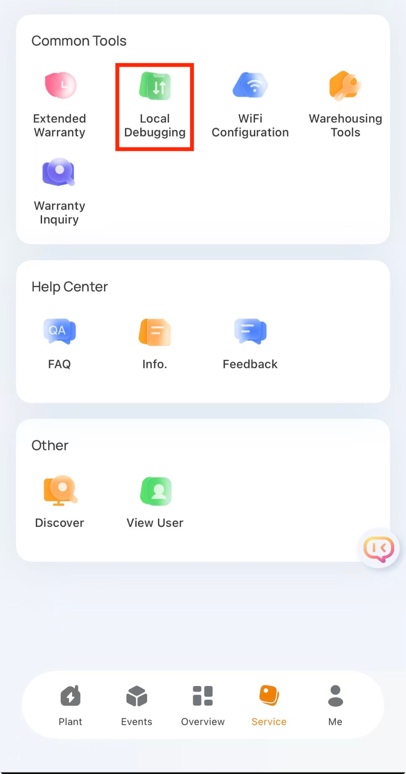
2. Tap Bluetooth Connection (Do not select WiFi connection). Ensure your phone's Bluetooth is turned on. 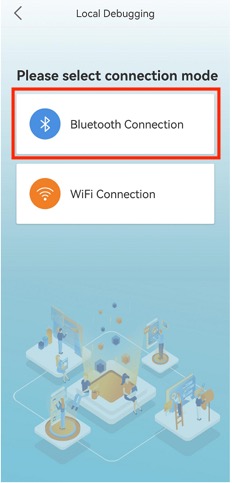
3. Select the device labeled D_[Logger Serial Number]. Note: The text "Nearest Connection" should appear in green directly beneath the device name.
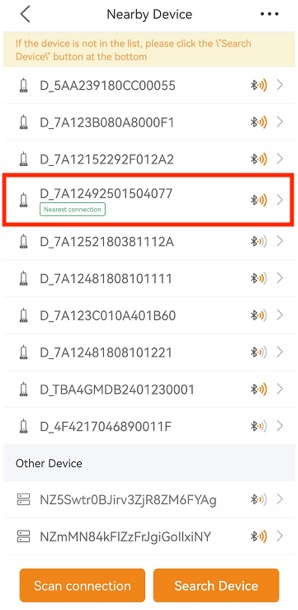
4. Wait for your phone to establish the connection with the logger. 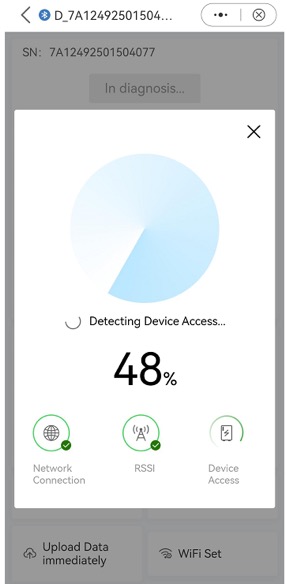
5. Tap the Setting (gear) icon in the bottom right corner of the screen. 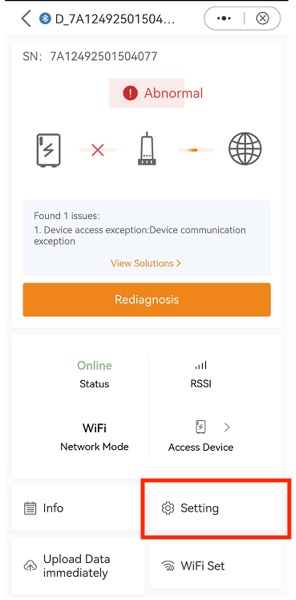
6. Tap LAN Port Settings near the top of the screen. 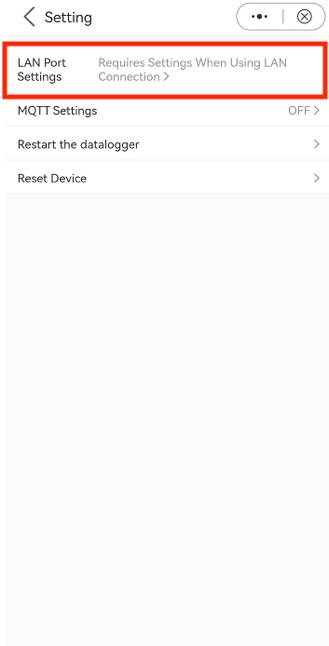
7. Tap Static IP in the top right corner. 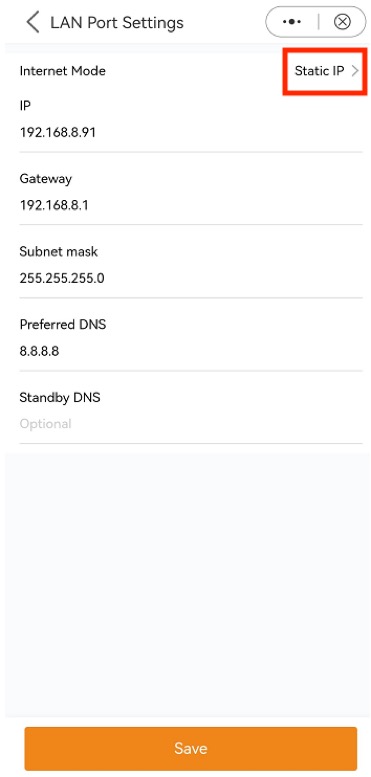
8. Enter your desired Static IP address, along with the required Subnet Mask and Gateway. 9. Tap Save at the bottom of the screen, then tap Confirm 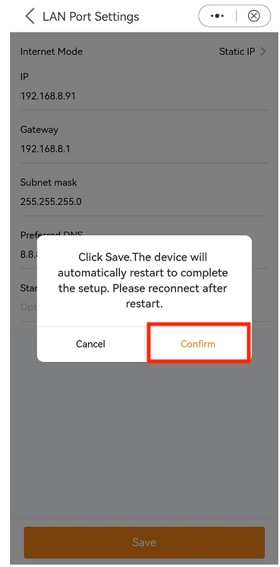
3. Using Modbus Poll
3.1 Installation and RegistrationOnce installed, open the Modbus Poll software. Navigate to Connection > Connect in the top menu. A registration window will appear. If you have purchased a key, enter it and click OK. Otherwise, you can close this prompt to continue using the software under its 30-day trial permission.
3.2 Parameter SetupTo define what data you want to read, navigate to Setup > Read/Write Definition. Configure the parameters as follows: Slave: The Modbus ID of the inverter you are accessing (Default is 1). Function: Select 03 (Read Holding Registers). Address: The starting register address. For Solis grid-tied inverters, set the starting address to 3000 (or 0 if testing general connectivity). Length: The number of continuous registers to read. For this demonstration, enter 50 to display 50 consecutive addresses. Scan Rate: The data polling cycle. The default is 1000ms.
Click OK. The main simulation window will now display your defined list of registers.
3.3 Display SettingsBy default, register data is displayed as a Signed Integer (ranging from -32768 to 32767). If you need to view the data in a different numerical format (e.g., Hex, Float), navigate to the Display menu and select your preferred format.
3.4 Establishing the ConnectionNavigate to Connection > Connect to configure your serial and network settings: Connection: Select Modbus TCP/IP. IP Address: Enter the logger's IP address (either the default 10.10.100.254 or your assigned static IP from Section 2). Port: Enter 502 (the default Modbus TCP port for the S2-WL-ST). Response Timeout: The read timeout threshold. Default is 1000ms. Delay between Polls: The minimum interval between data requests. Default is 10ms.
Click OK. If the connection is successful, the main window will begin populating with live data from the read registers.
3.5 Viewing Communication TrafficTo monitor raw data frames, navigate to Display > Communication. A "Communication Traffic" window will open, allowing you to analyze the specific hexadecimal data being transmitted. The first 6 characters represent the data frame sequence number. Rx: Received data frames (from the inverter). Tx: Transmitted data frames (from Modbus Poll).
3.6 DisconnectingTo end the test, navigate to Connection > Disconnect. The interface will display a red "No Connection" warning to confirm the session has ended. |