This guide only applies to Solis customers in Canada and the US. If you are located in a different region, please contact your local Solis Support team. The North American team is not permitted to help you with API unless you are based in either the US or Canada.
Process for Obtaining API Access
- Customer: Send an mail to usservice@solisinverters.com requesting API access be opened for your account. Provide the email address you used to regiister your SolisCloud account or the Organization Code for your account.
- Solis Support: Opens API access within 24 hours of the request being sent. Process outlined below.
- Customer: Once access has been opened, the customer obtains the API credentials by following this path on the browser-version of the SolisCloud portal.
- Customer: With the API credentials, data can be pulled from SolisCloud through API. You can also control your system through API. The attached SolisCloud Device Control API document explains how to do this. Please scroll to the bottom of this article and click the document to download it.
- Note: The API credentials can be shared with others. This is how third-parties are able to use Solis API access to pull data from many plants registered to multiple different Organization accounts on SolisCloud.
Solis Support Steps for Opening API Access
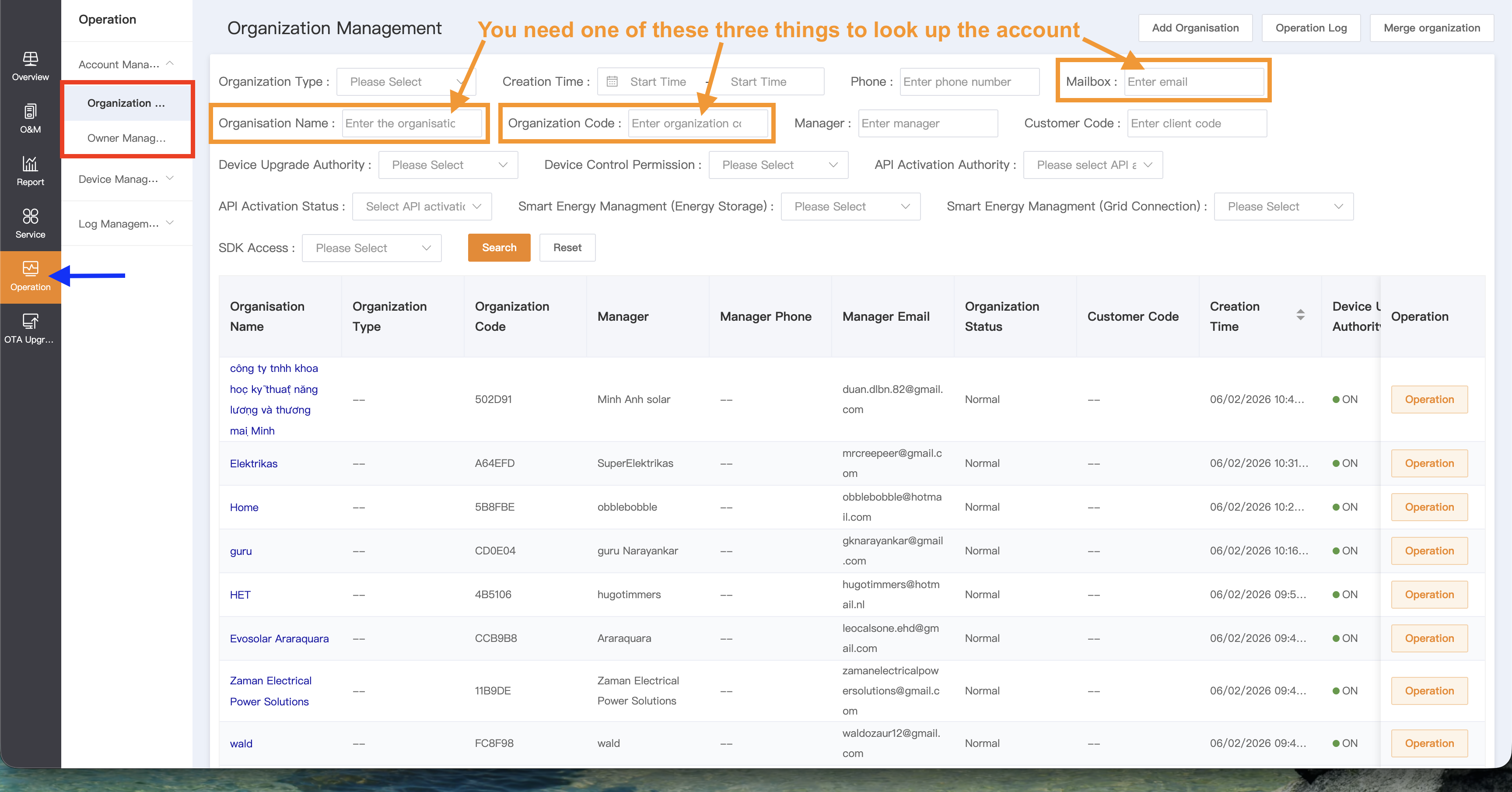
Start: Before doing anything ask the customer for one of their SolisCloud account credentials. This could be the Organization Code, the Organization Name, or the email address of the Director account for the Organization. You only need one of these to find their account but the Organization Name/Code are preferable to an email address.
If they do not have an account yet, they need to make one first.
Note: You must search the Director account email address. If you search for an email address that is a sub-account or sub-Director such as an Administrator account, then the main Organization account will not appear.
Step 1: Using a computer and not a phone open SolisCloud in a browser. Click on “Operation” on the left side of the page. Then click on “Organization Management”.
Step 2: Search the credential and if nothing comes up then search it again under “Owner Management”. Sometimes customers requesting API access are the system owner and not the installer or they mistakenly make the wrong account type. In either case, you should find the account under either Owner or Organization Management.
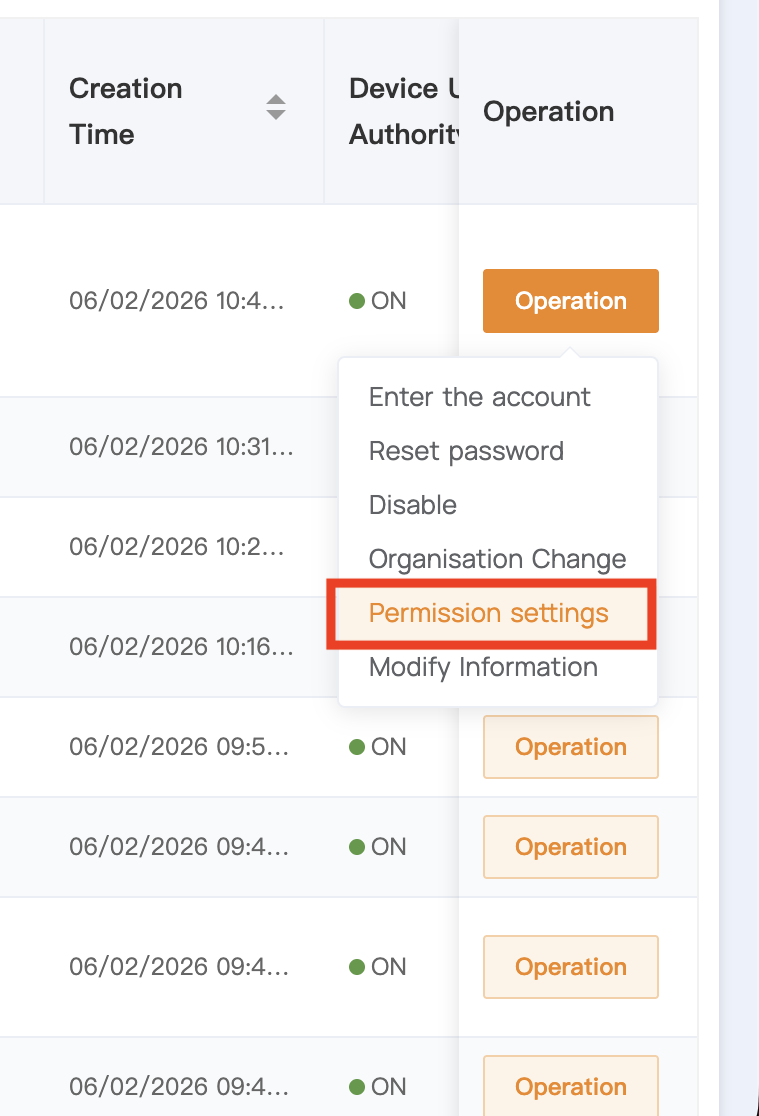
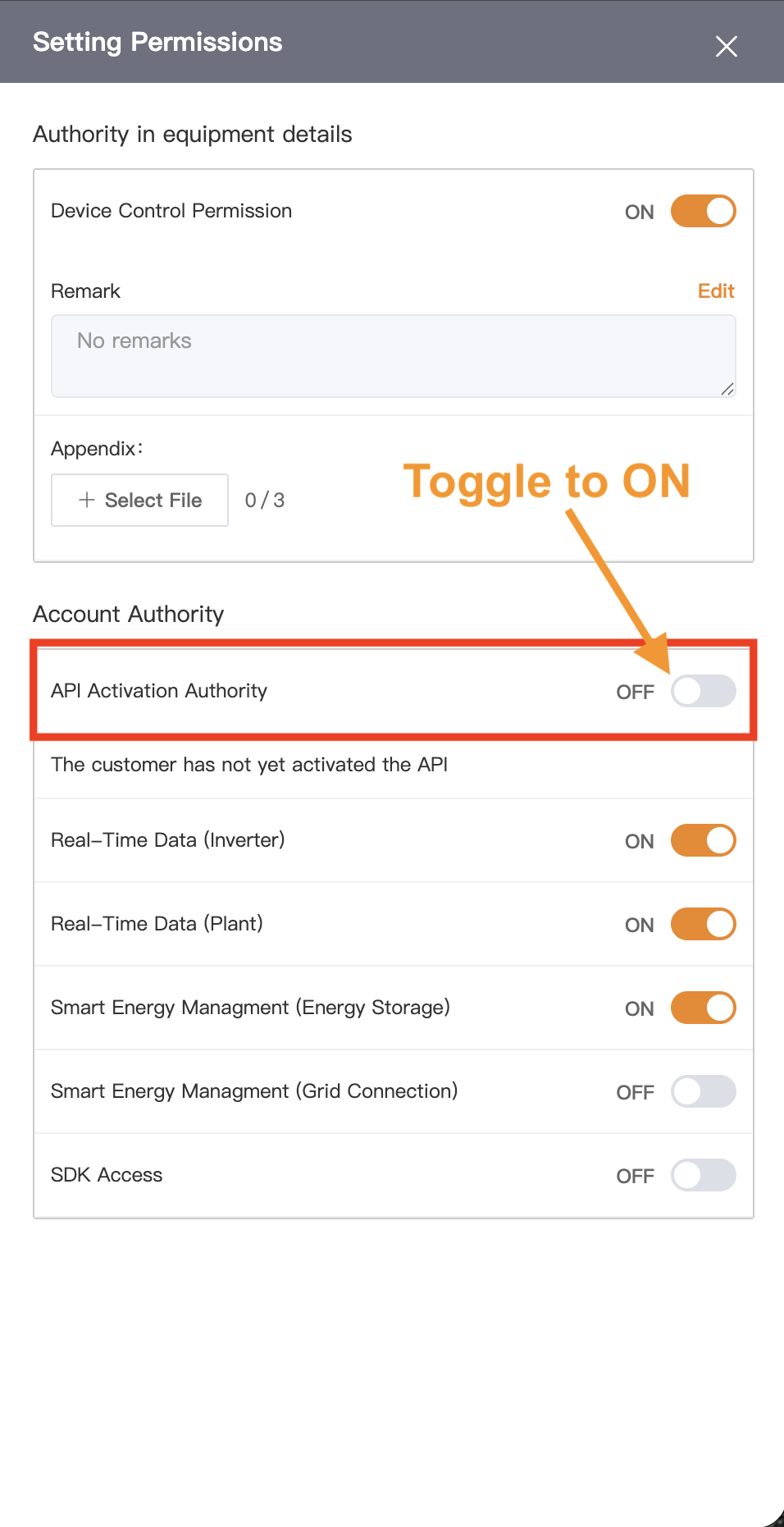
Step 3: Once you find the account click the orange “Operation” button on the right side of the page in line with the account. Click “Permission Settings” and then toggle to ON the switch to the right of “API Activation Authority”.
Finish: Inform the customer that API access has been opened for their account. That is all that Solis Support needs to do. The rest is up to the customer. The steps for obtaining API credentials are outlined below.
Solis Customer Steps for Obtaining SolisCloud API Credenitals
Start: Log in to your SolisCloud account on a computer, not a phone. This process must be done on a computer.
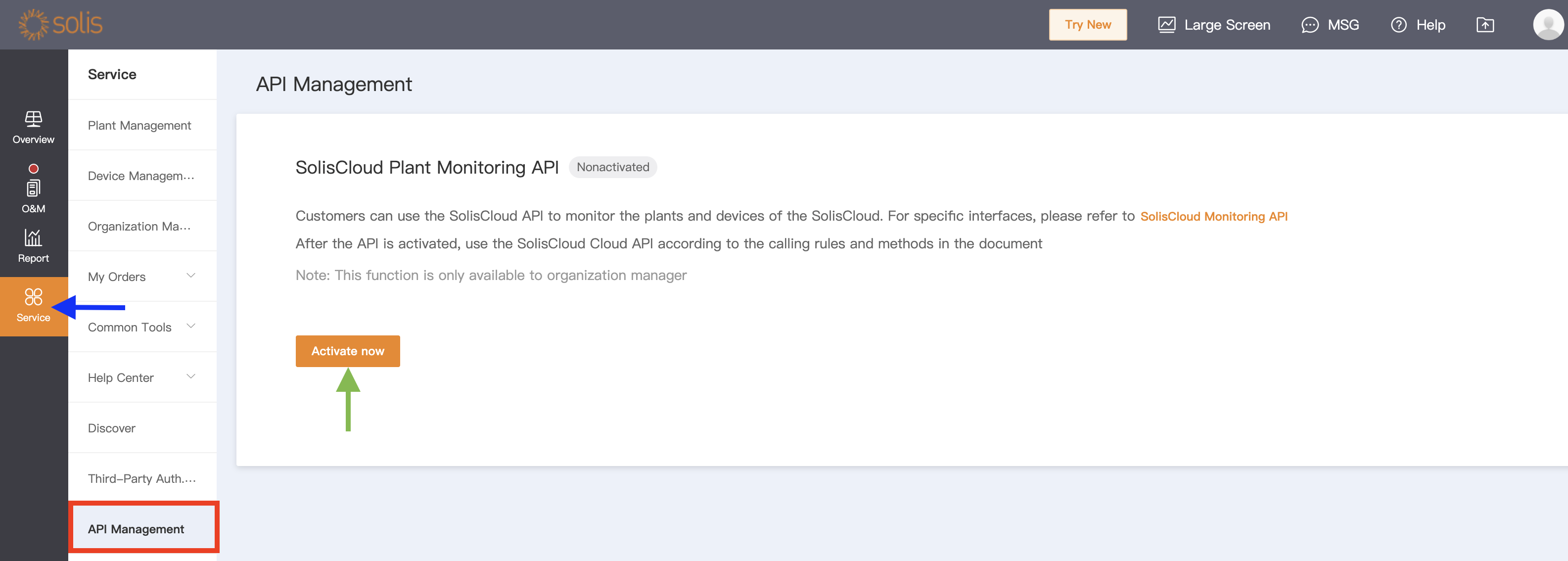
Step 1: From the main SolisCloud page click “Service” on the left side of the page and then click "API Management”. Click the orange button that says “Activate now”.
Step 2: Wait about 10 seconds for the orange "Agree and activate” button to let you click it.
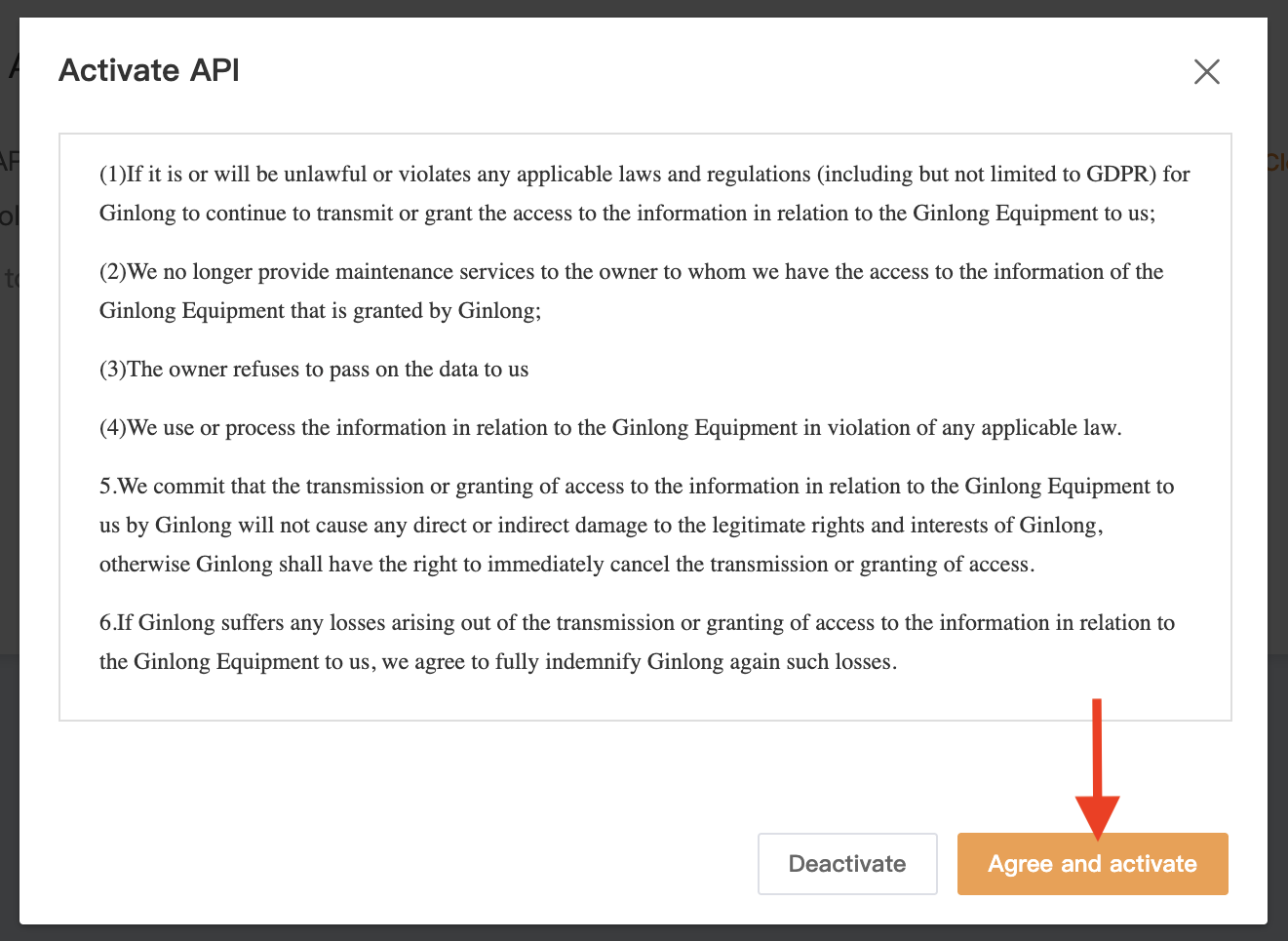
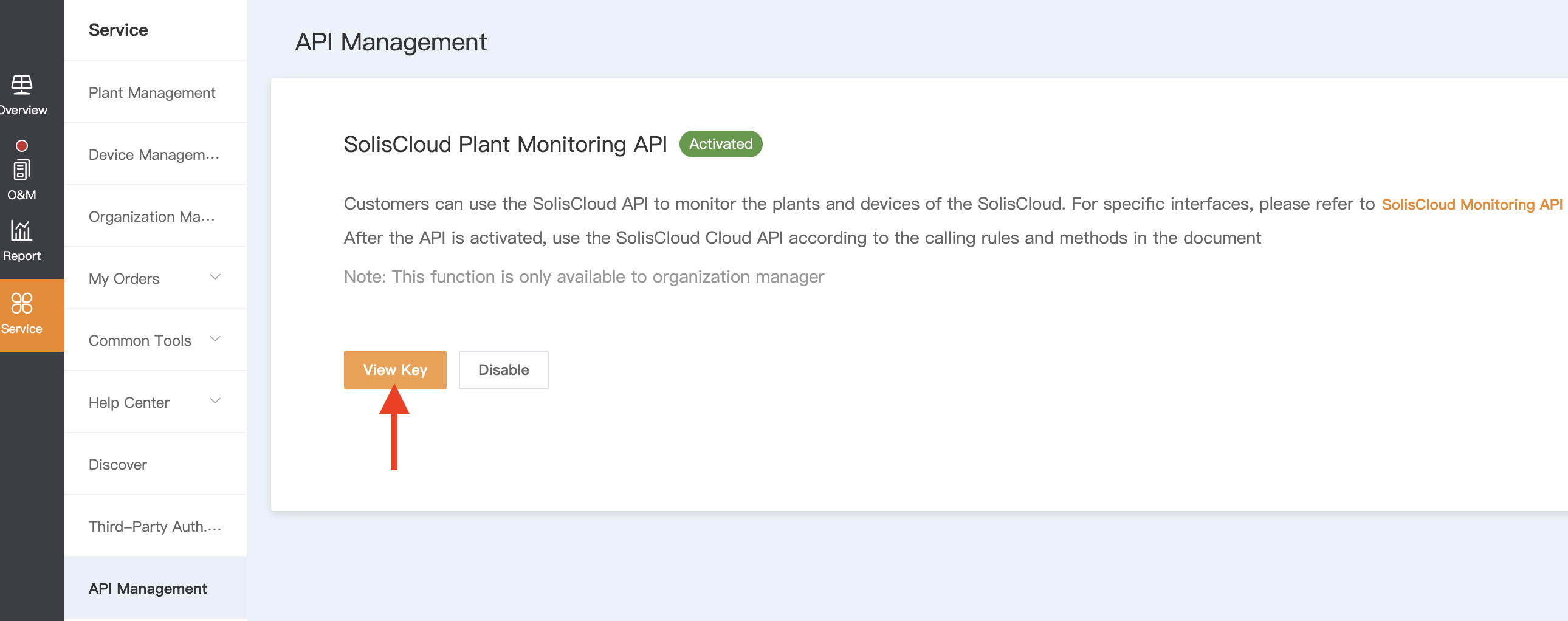
Step 3: Now that your API is activated you can get your credentials. Click the orange “View Key” button
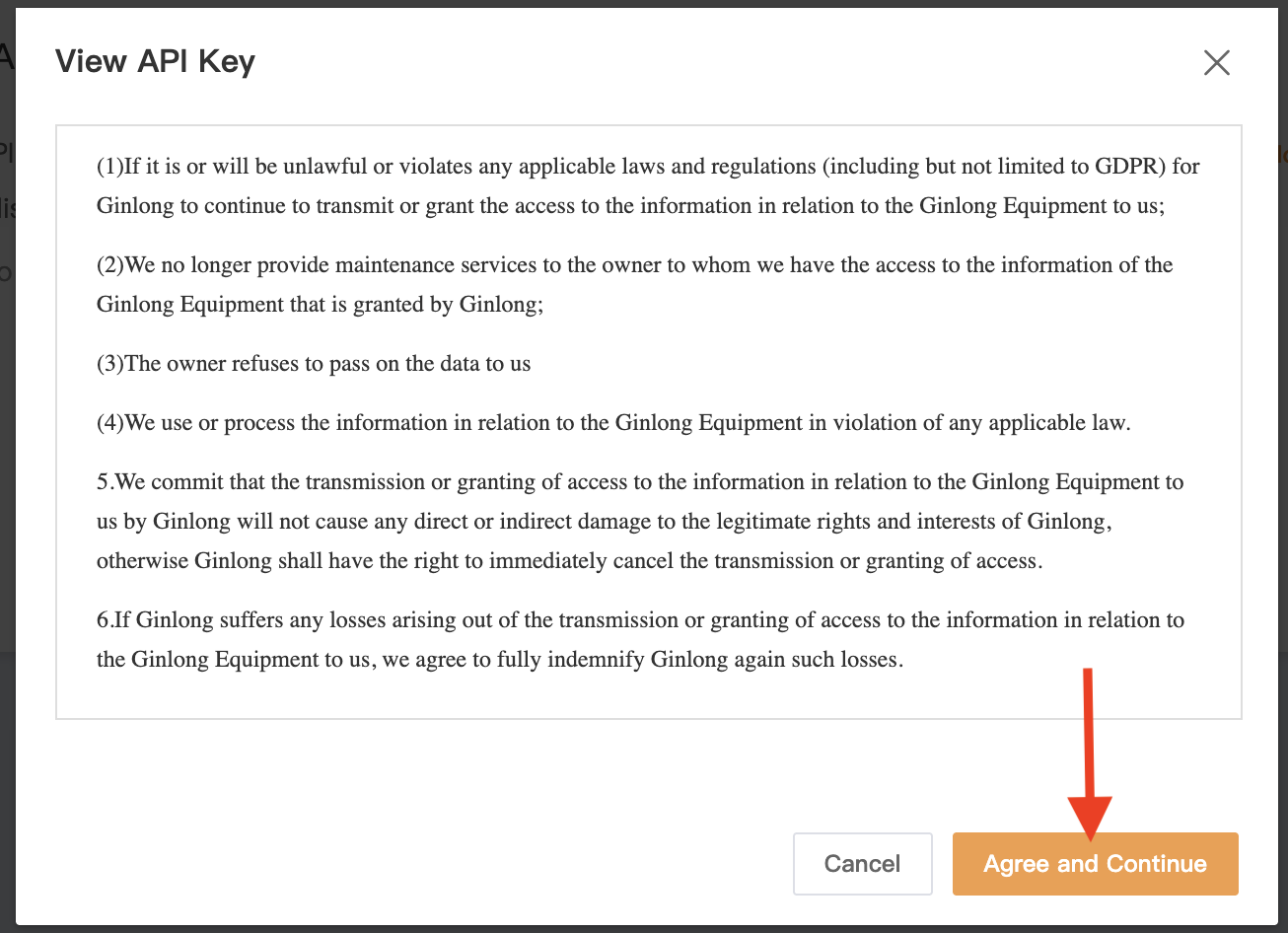
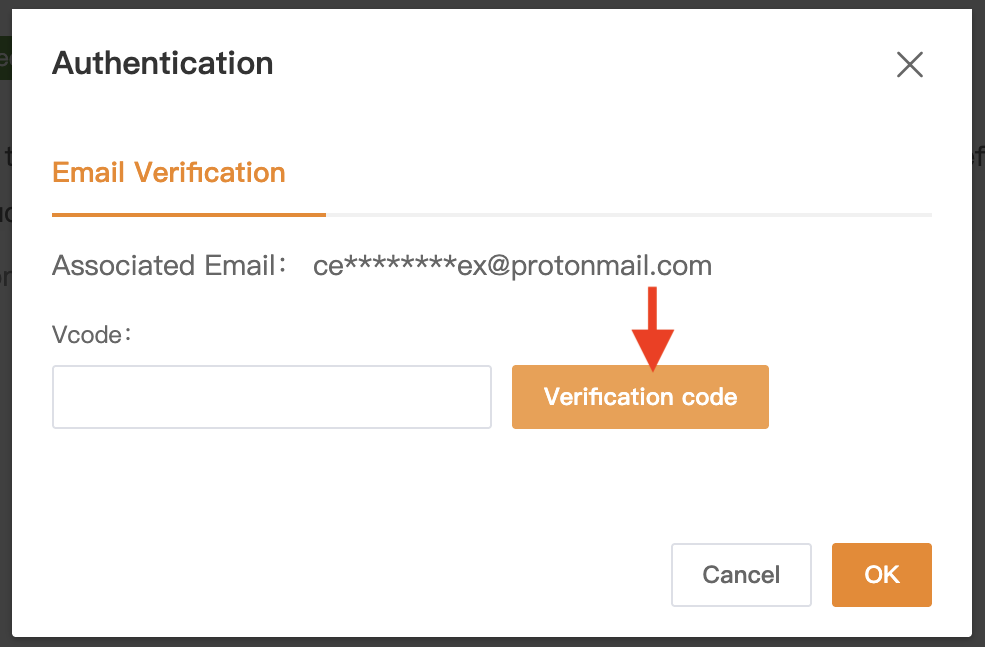
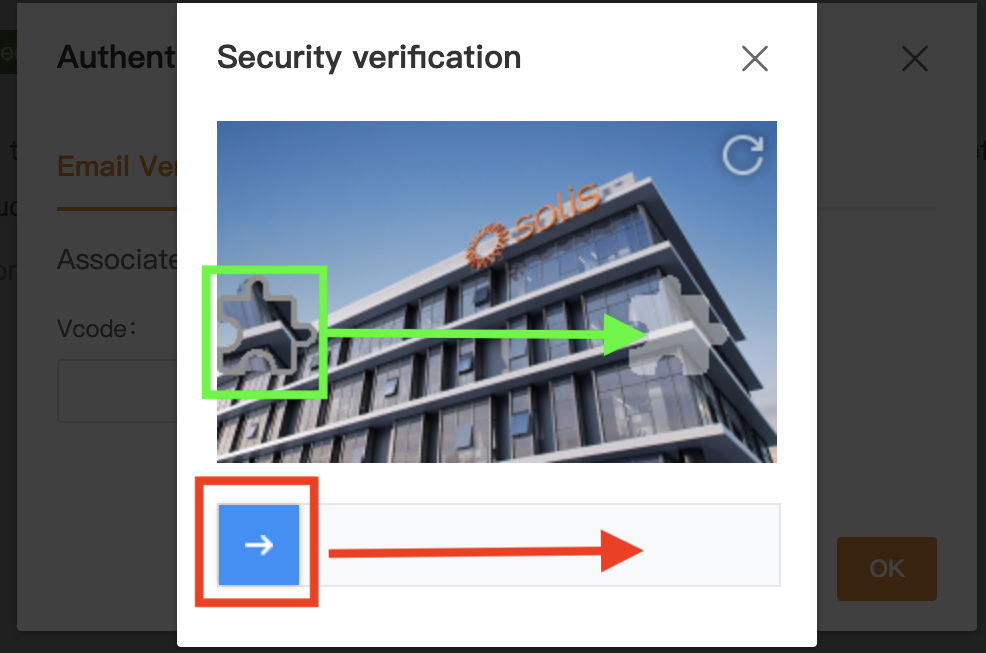
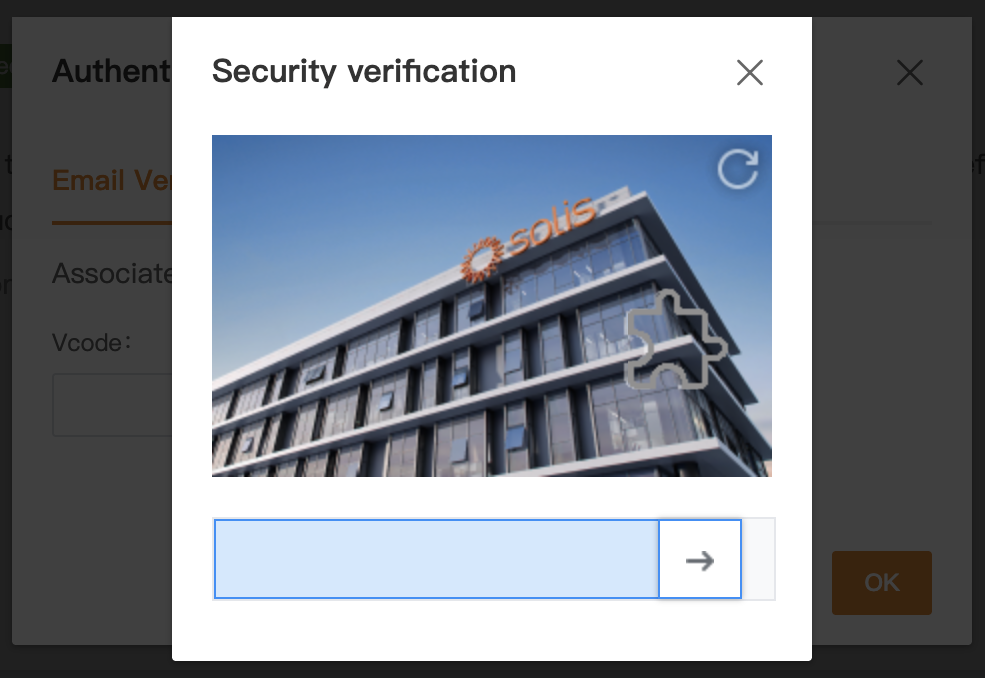
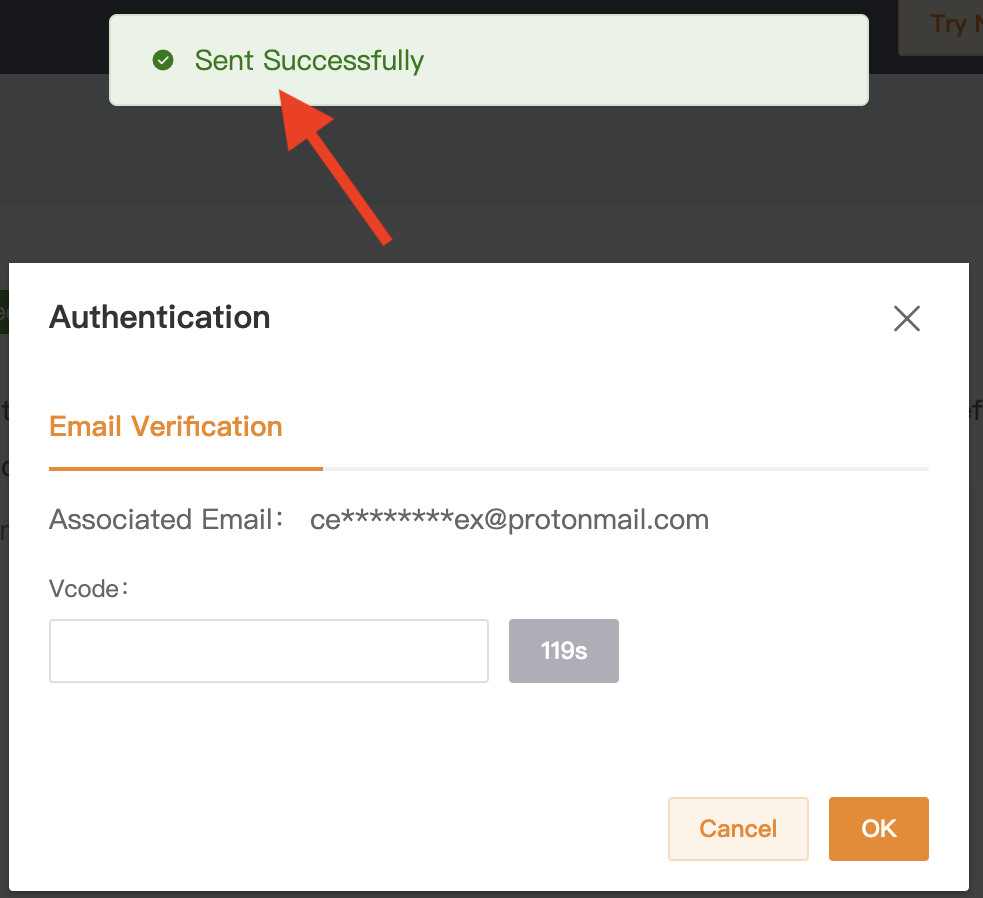
Step 4: Click "Agree and Continue” and then click “Verification Code”. You will now need to complete a CAPTCHA puzzle. This can be done by clicking and holding the little blue arrow and dragging it to the right to slide the puzzle piece into the empty space where it should perfectly fit. Once this is done properly, you will see a message that says “Sent Successfully”.
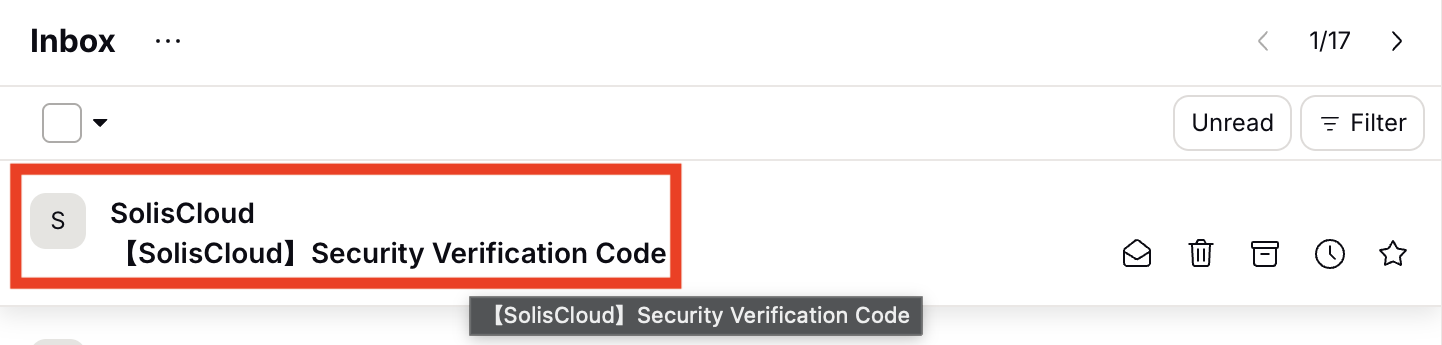
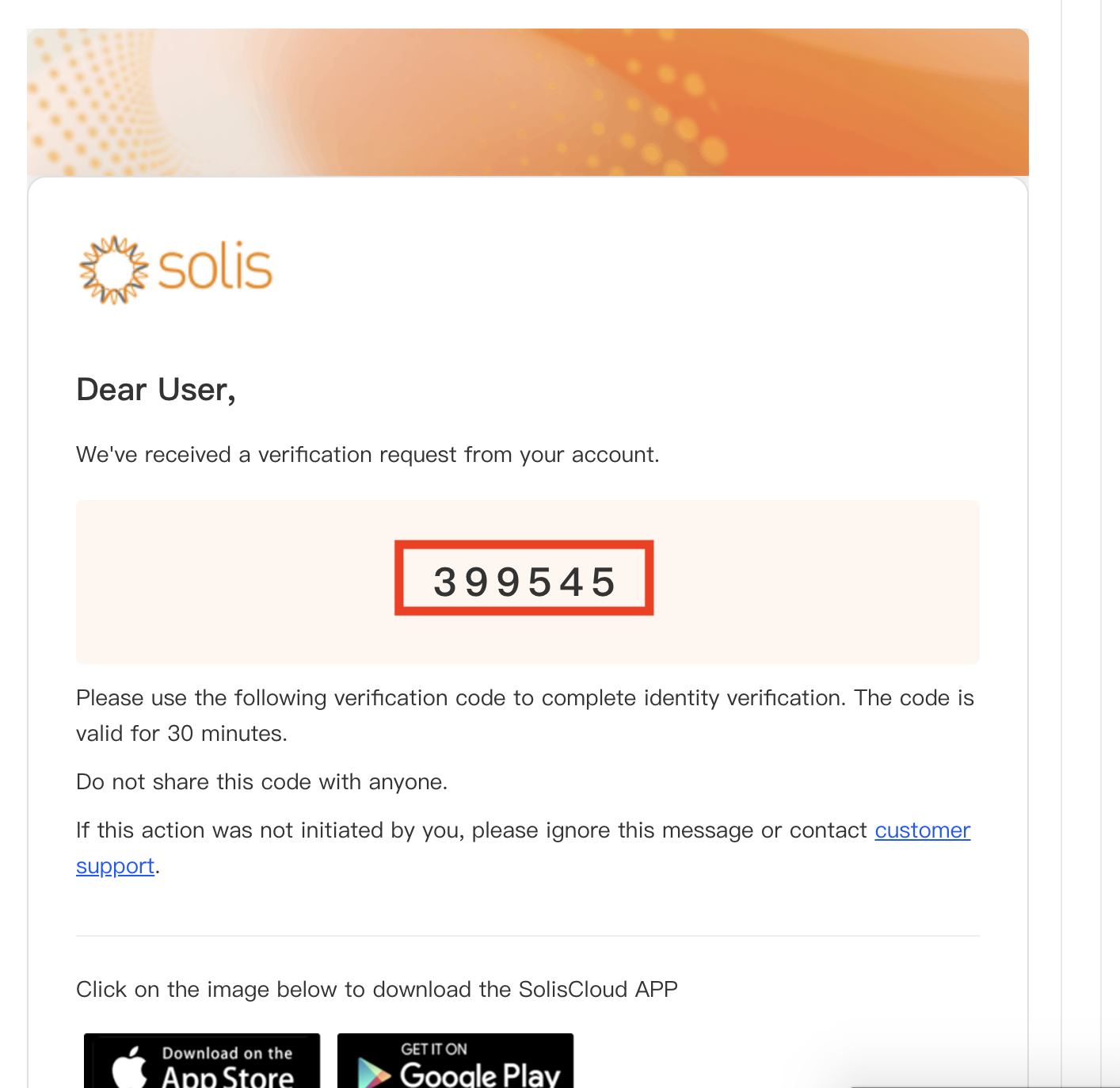
Step 5: Check your email inbox for an email from SolisCloud. It should look similar to the one shown below. Please be sure to check your SPAM folder if it does not show up in your main inbox. Click the email and then copy the verification code which is the six-digit number that should be fairly obvious in the email body. You have a limited amount of time to get the code before it expires so please be fairly quick.
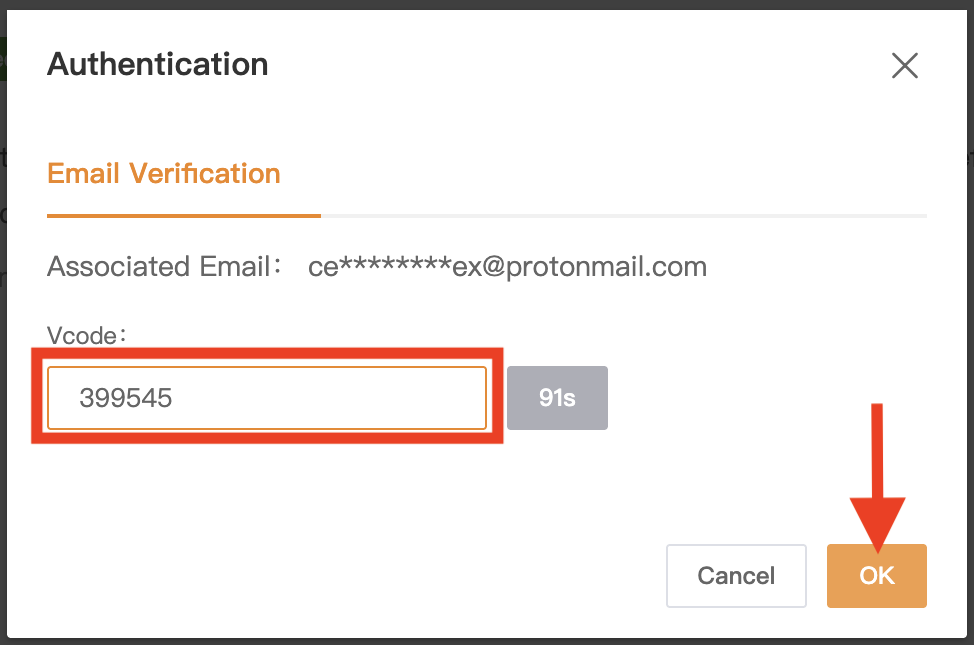
Step 6: Go back to SolisCloud and then paste the code into the field that says “Vcode”. Click OK once you are done.
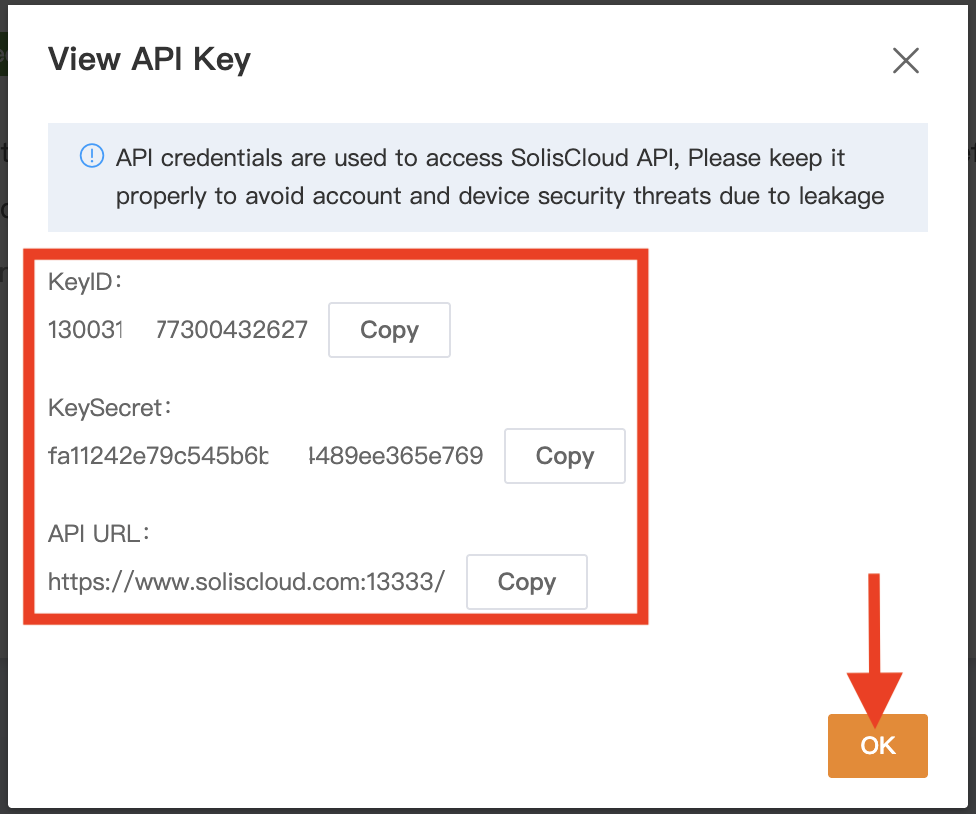
Finish: You will be given a KeyID, a KeySecret, and an API URL. These are your API credentials. You will use these credentials to pull data from all plants registered to your SolisCloud account. Note: parts of the numbers were erased in the example below for security of the account doing the demonstration.
- Keep in mind that your credentials only apply to your account. If your goal is to monitor sites that belong to or have been registered to a different SolisCloud account, you will need the other party to give you their API credentials.
- Download the attached SolisCloud API Control document which shows how to use the API credentials to pull data from SolisCloud.
- If you need any support or assistance please contact Solis Support at usservice@solisinverters.com
Was this article helpful?
That’s Great!
Thank you for your feedback
Sorry! We couldn't be helpful
Thank you for your feedback
Feedback sent
We appreciate your effort and will try to fix the article